clir Voice · Video sound
3 Audio Mistakes That Make Good Videos Hard to Watch
Three common video audio mistakes: appliance hum, room echo and poor microphone or call audio. Learn how to spot each problem and prevent it.
A fridge humming behind you, a voice bouncing around an empty room, or a guest who sounds like they're speaking through a tin can: any of these can make a good video tiring to watch.
You can catch most of these problems with a short test recording and a pair of headphones. Here's what to listen for and what to change.
1. Leaving noisy devices running
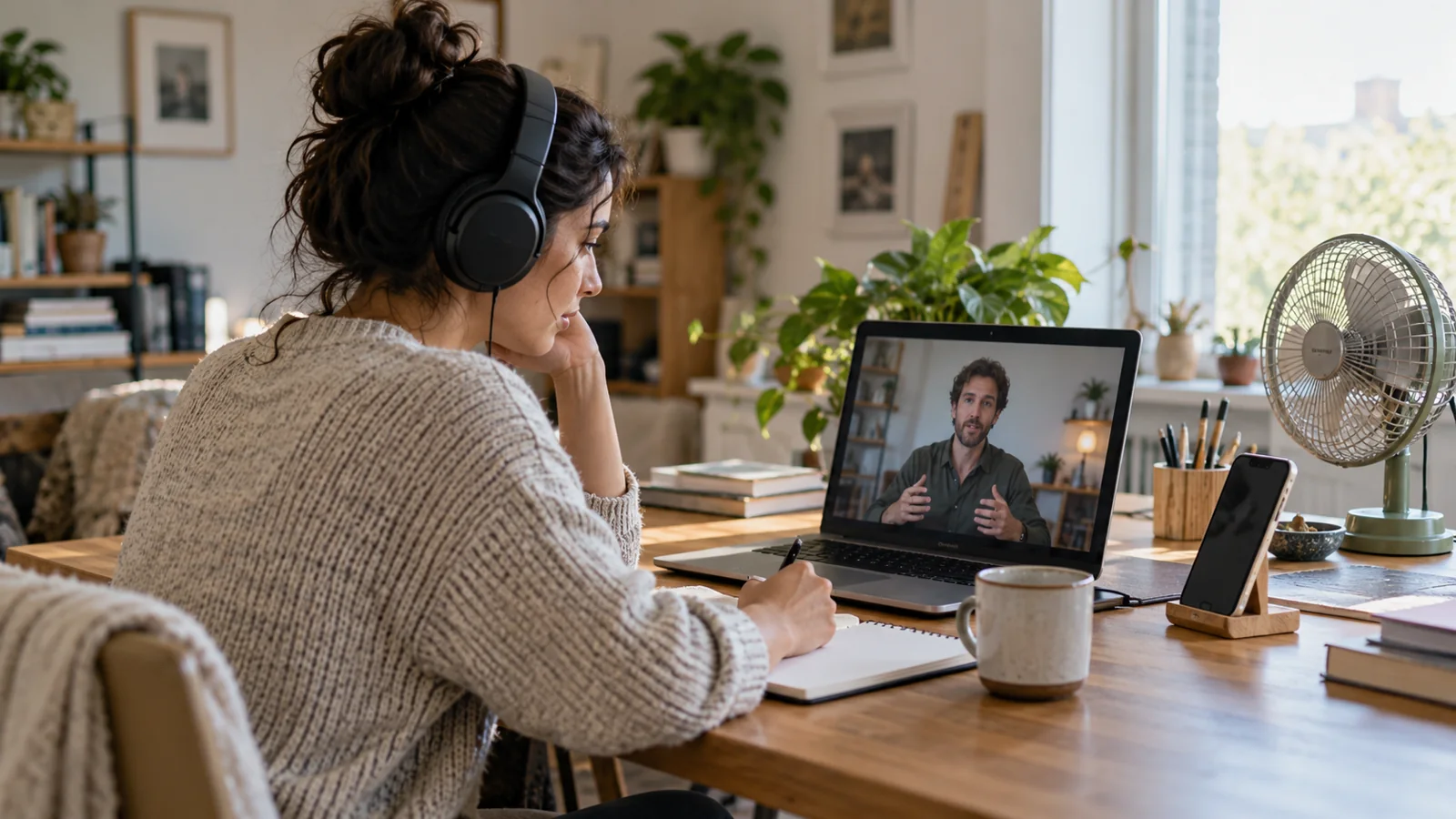
Fans, air conditioning, fridges and computer fans can leave a steady hum under every sentence. You may stop noticing it while you're in the room, but your microphone keeps picking it up. Your viewer has to listen through it to follow what you're saying.
Record ten seconds of the room without speaking, then a few normal sentences. Listen on headphones. Pay attention to the gaps between words: is there a constant buzz, hiss or low rumble?
Turn off the fan or AC for the take, close the window, or move away from the appliance. If you briefly unplug a fridge, set a reminder to plug it back in as soon as you're done. Move a noisy laptop farther from the microphone if you can.
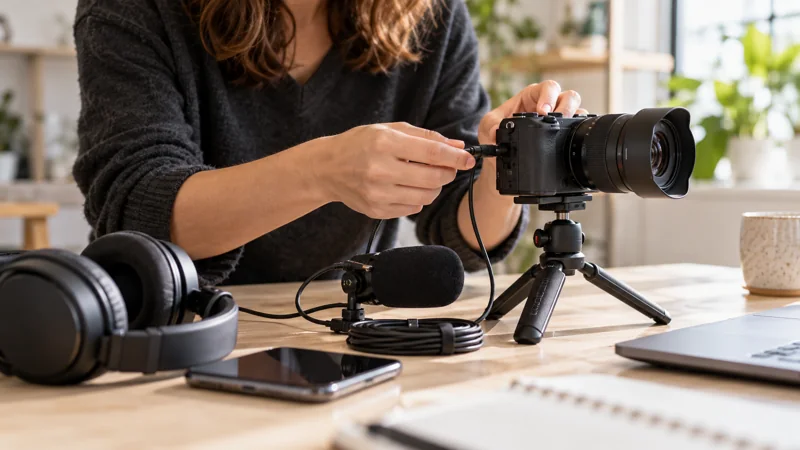
Record the same sentence again. Listen for the difference before filming the whole video. Getting the microphone closer to your mouth also helps your voice stand out from the room.
2. Recording in a bare, echoey room
Hard floors, bare walls and large windows reflect sound. Your microphone picks up your voice along with those reflections. The result can sound hollow or washed out, with a little tail after each phrase.
That room sound makes speech harder to follow. Over a longer video, it can become uncomfortable to listen to, even when every word is technically audible.
Record a sentence, stop and listen to how it ends. A hand clap can help you notice a lively room too, but check the spoken recording before choosing your spot.
Try a room with a carpet, curtains, a sofa or a full bookcase. In a bare space, a rug on the floor and blankets hung beside or behind the speaker can reduce reflections. Keep the microphone close and avoid speaking toward a nearby bare wall.
Repeat the test from the new position. A smaller, furnished room often gives you a clearer recording with the same microphone.
3. Using a poor microphone or a compressed call recording
A weak headset microphone can make a voice sound thin, muffled or harsh. A remote interview adds another possible problem: the call can compress the audio or lose parts of words when the connection struggles.
Listen for a tinny voice, watery sound, sudden changes in quality or missing syllables. Record a short local test with the same microphone and compare it with the call recording. If both sound poor, check the microphone and its position. If only the call sounds poor, the connection or call processing may be the problem.
Before buying equipment, compare your headset with the phone's built-in microphone at a sensible distance. Price alone won't tell you which recording sounds better.
For a remote interview, ask each person to record their own voice locally and send you the original file afterward. A good microphone close to the speaker avoids relying on the audio that travelled through the call. Keep the call recording as a reference for lining up the separate files in your editor.
Give your guest the same room checks: quiet appliances, less echo and a short headphone test before you start.
Check thirty seconds before recording the rest
Record a few sentences with the setup you'll actually use. Listen on headphones for steady noise, a hollow room sound and a thin or broken voice. Change one thing, then record the same words again.
For footage you already have, the five audio-repair methods explain what you can try afterward. clir Voice is one option for reducing noise and echo on iPhone; the video cleanup walkthrough covers that workflow.