
clir Voice · Mobile recording
My iPhone Setup for Recording in Noisy Places
A simple iPhone setup for noisy places: choose a better position, avoid the wrong microphone, check on headphones and know when to record another take.
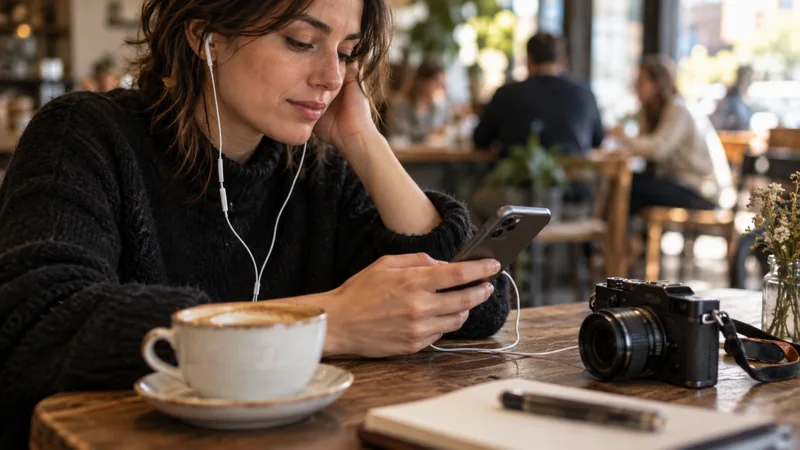
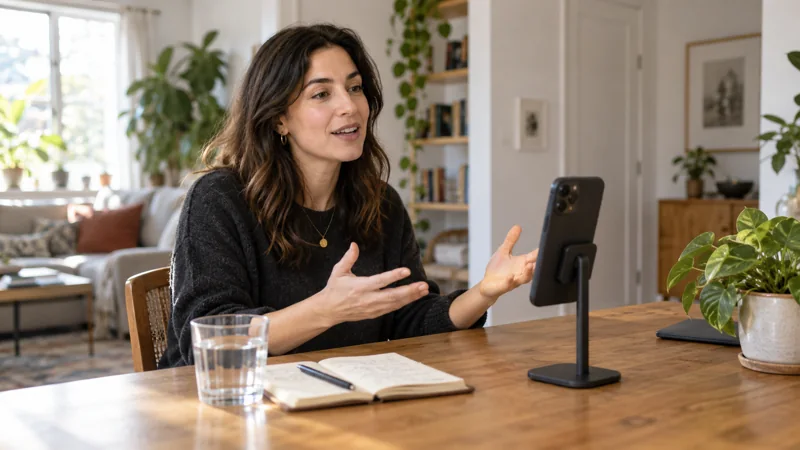
For a noisy location, I'd start with an iPhone on a stable support, its built-in microphone close to the speaker, and headphones to check the take. A short test tells you much more than the sound of the room while you're standing in it.
Keep the setup simple
| Item | What to check |
|---|---|
| iPhone | Enough battery and storage, with its microphones clear of hands and fabric |
| Stable support | No rattling, table bumps or repeated handling |
| Headphones | Speech, background hum and room echo in the test recording |
| Recorder app | You can save the original and find the file afterward |
Disconnect Bluetooth accessories before recording with the built-in mic. Connect headphones afterward to listen. Try the equipment you already have before buying accessories.
For a full episode, the iPhone podcast guide covers solo recordings, two speakers and remote guests.
Find a quieter spot
Move away from an extractor fan, loudspeaker or busy road where possible. A seat on the other side of a café may make more difference than a new app.
Keep the phone close to the person speaking. If the shot needs to be wide, a separate phone or microphone can record closer audio outside the frame.
Outdoors, find shelter from the wind. Wind hitting the microphone can cover whole words. Check the recording after a gust instead of assuming that cleanup will fix it later.
Record the same words from two positions
Record a normal sentence, a louder sentence and a few seconds without speaking. Move the phone or yourself and repeat the same words.
Listen on headphones for:
- Steady hum or hiss: move away from the source or switch it off for the take.
- A hollow voice: move closer or try a less reflective spot.
- A bump when you touch the support: change the support or stop handling it.
- Crackling loud words: adjust the distance or recording level and repeat the line.
- Missing words under wind or another voice: ask for another take while the speaker is there.
Turn your head naturally during the test too. A setup that only works while you hold completely still won't suit a conversation.
Prepare the files before leaving
Check storage, charge the phone and make sure your recording app works without a connection. If it uses downloadable models, download them beforehand. Keep any reference recordings available locally too.
Record a short file, save it and play it back. That checks the basic workflow before you're somewhere with poor signal.
Use cleanup after checking the capture
Noise reduction may help a usable voice stand out from a steady background. Echo reduction may help a hollow room recording. Compare the processed passage with the original at a similar playback volume and listen to the words as well as the pauses.
If you want an iPhone voice recorder with noise reduction, clir Voice is one option that also works on-device after its models are downloaded. Plus and Ultra are subscriptions. Ultra also reduces echo and rebuilds speech, so check important words against the original.
The audio-repair guide explains which kind of repair fits each problem.
Check the file before packing up
Play the saved recording on headphones and the phone speaker. Replay the difficult passage while another take is still possible. Keep the original even if you've made a cleaned-up version.
For video, check that the final file includes the intended sound and that speech stays in sync. The video cleanup walkthrough covers one iPhone workflow when the recorded sound needs more work.