If your iPhone microphone is not working, first remove the case and any screen protector and gently clear the microphone openings, then test each microphone with Voice Memos and the Camera app as Apple suggests. If one app is the problem, check Settings → Privacy & Security → Microphone; if every app is affected, disconnect Bluetooth headphones, restart and update iOS. When none of that helps, the microphone likely needs service.
The fixes below go from quickest to most involved. Work through them in order and test after each one.
First: find out which microphone fails
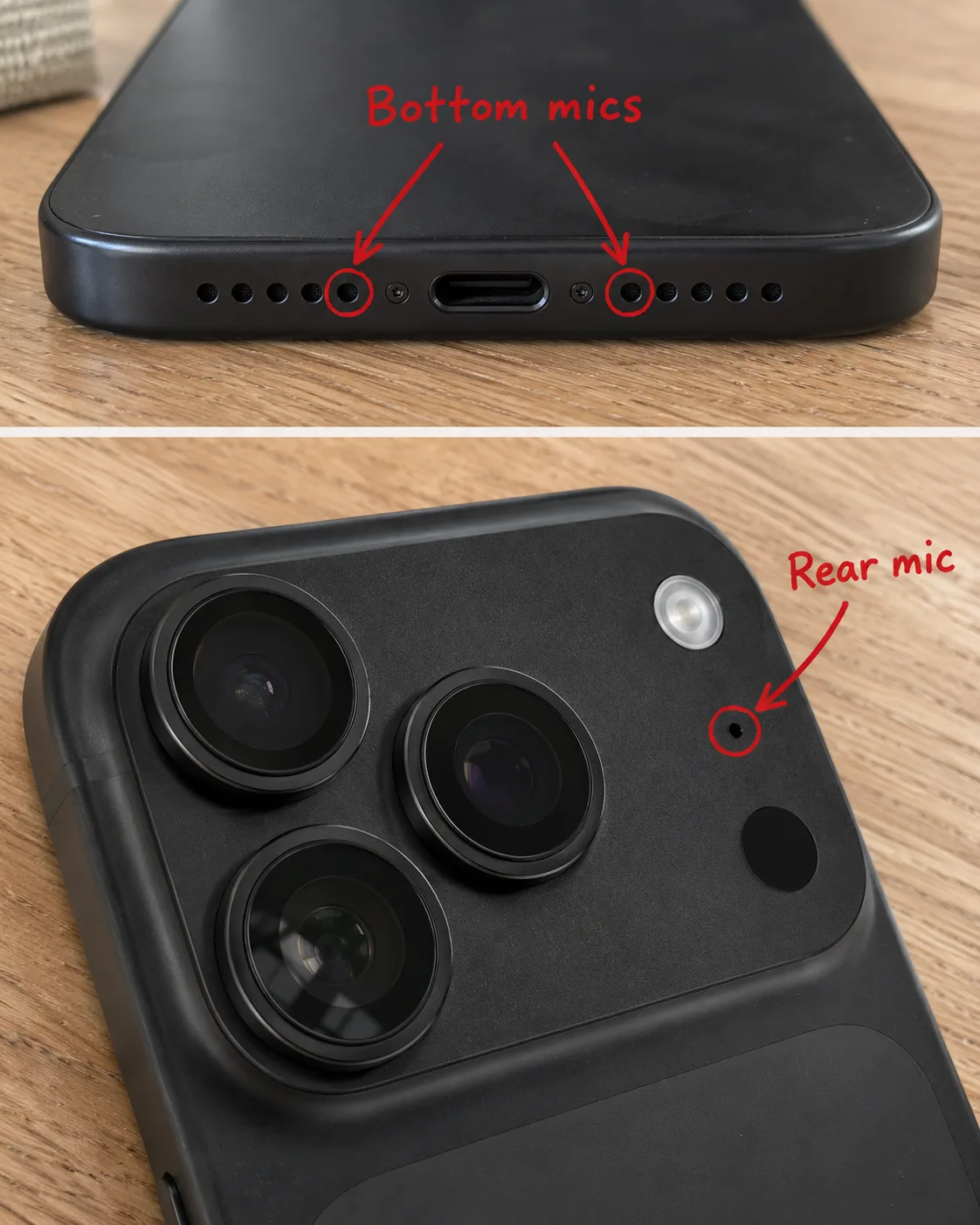
Recent iPhones have several microphones, roughly at the bottom edge, at the top front near the earpiece, and on the back next to the cameras. Different apps use different ones, which is why "the mic" can work in one place and not another. Apple's own test uses two built-in apps:
Bottom microphone (calls and FaceTime): open Voice Memos, tap the record button, speak near the bottom of the iPhone, stop, and play it back. Your voice should be clear.
Top and rear microphones (speakerphone and video): open Camera, record a short video while speaking near the top of the iPhone, then switch to the other camera and record again. Play both back.
What the results tell you:
Both tests sound fine, but one app fails: the problem is that app or its permission (fixes 3, 4 and 8).
One test fails, the other works: one microphone is blocked or faulty (fixes 1 and 9).
Everything is silent or muffled: start with fix 1, then 2, 5 and 6.
Fix 1: Remove the case and clean the openings
Apple's first step is to remove screen protectors, films and cases, then clear any debris from the openings. Cases that are slightly misaligned, or a protector that covers the earpiece area, can block a microphone without you noticing.
To clean the openings, use a soft, dry, clean brush and work gently. Pocket lint and dust collect in the bottom openings next to the charging port. Do not push anything sharp into the holes and do not use liquids, since both can damage the microphone.
Fix 2: Disconnect Bluetooth and other microphones
If AirPods, a headset, a car system or an external mic is connected, the iPhone may be using that microphone instead of its own. Turn off Bluetooth in Control Center or Settings → Bluetooth, unplug any wired accessory, and test again.
While an app is using the microphone, Control Center can also show an Input option when more than one microphone is connected, so you can see and change which one is active.
Fix 3: Check the app's microphone permission
If only one app can't hear you:
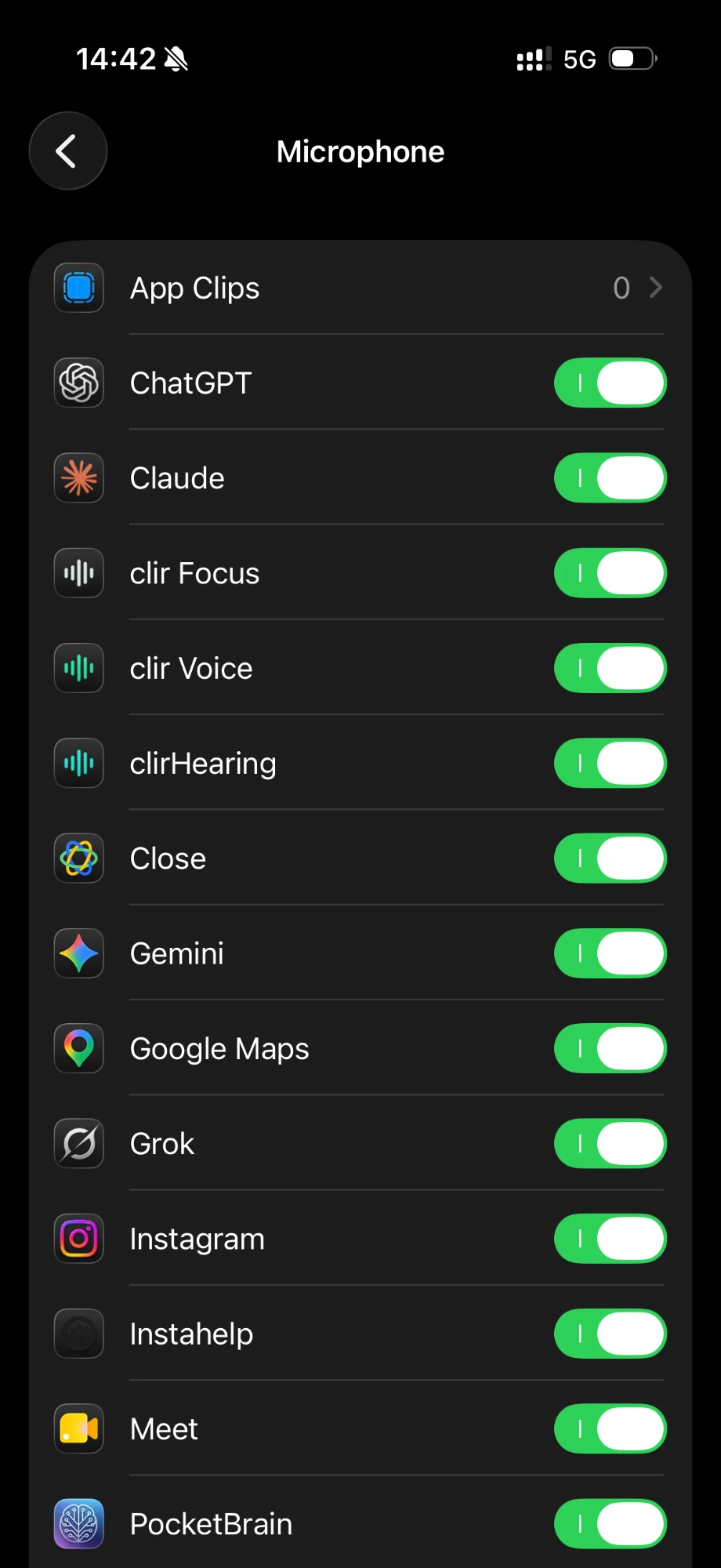
Open Settings → Privacy & Security → Microphone.
Make sure the switch for that app is on.
If the app already has access, or it is not in the list at all, Apple's advice is to contact the app's developer. A green or orange dot at the top of the screen while you use the app tells you whether the camera or microphone is actually in use.
Fix 4: Check Mic Mode
Mic Mode in Control Center changes how the microphone signal is processed in calls and recording apps. Voice Isolation filters out background sound and Wide Spectrum keeps it. If people say you sound distant, cut off or oddly processed, open Control Center while the app is using the mic, tap the app's controls at the top, and try a different mode. The mode is remembered per app.
If people can hear the room but not you, Voice Isolation is usually the better choice. If you are recording music or a group, Wide Spectrum keeps more of the sound.
Fix 5: Restart the iPhone
A restart clears temporary glitches in the audio system. Turn the iPhone off, wait a few seconds, and turn it back on, then repeat the Voice Memos test.
Fix 6: Update iOS
Some microphone problems are software bugs fixed in later updates.
Open Settings → General → Software Update.
If an update is available, tap Download and Install and follow the onscreen steps.
You can also turn on Automatic Updates on the same screen.
Fix 7: Compare calls, speakerphone and recordings
Narrow it down one more step:
Others can't hear you on normal calls, but speakerphone works: the bottom microphone is the likely suspect. Clean it again (fix 1).
Calls work but videos are silent or muffled: test the rear camera microphone with the Camera app, and check that your fingers or a case are not covering the opening beside the lenses.
Recordings work but one calling app fails: check that app's permission and settings (fixes 3 and 4), and try a call in another app.
On older iPhones, some guides also suggest toggling Phone Noise Cancellation in Settings → Accessibility → Audio & Visual. Apple lists that setting for iPhone 12 and earlier, and it affects what you hear on calls, not what others hear. So it will not fix a microphone that other people can't hear.
Fix 8: Reinstall or update the app
If one third-party app still cannot use the microphone after its permission is on, update the app from the App Store, or delete and reinstall it. If that does not help, contact its developer, as Apple suggests.
Fix 9: Get it serviced
If audio is still unclear during calls, recordings or in apps after these steps, Apple's next step is a service request through Apple Support or an Apple Store. Back up the iPhone before you hand it in, and mention any recent drop or water exposure.
When the mic works but recordings still sound bad
Sometimes the microphone is fine, but recordings sound noisy, echoey or distant. That is the recording environment, not a fault.
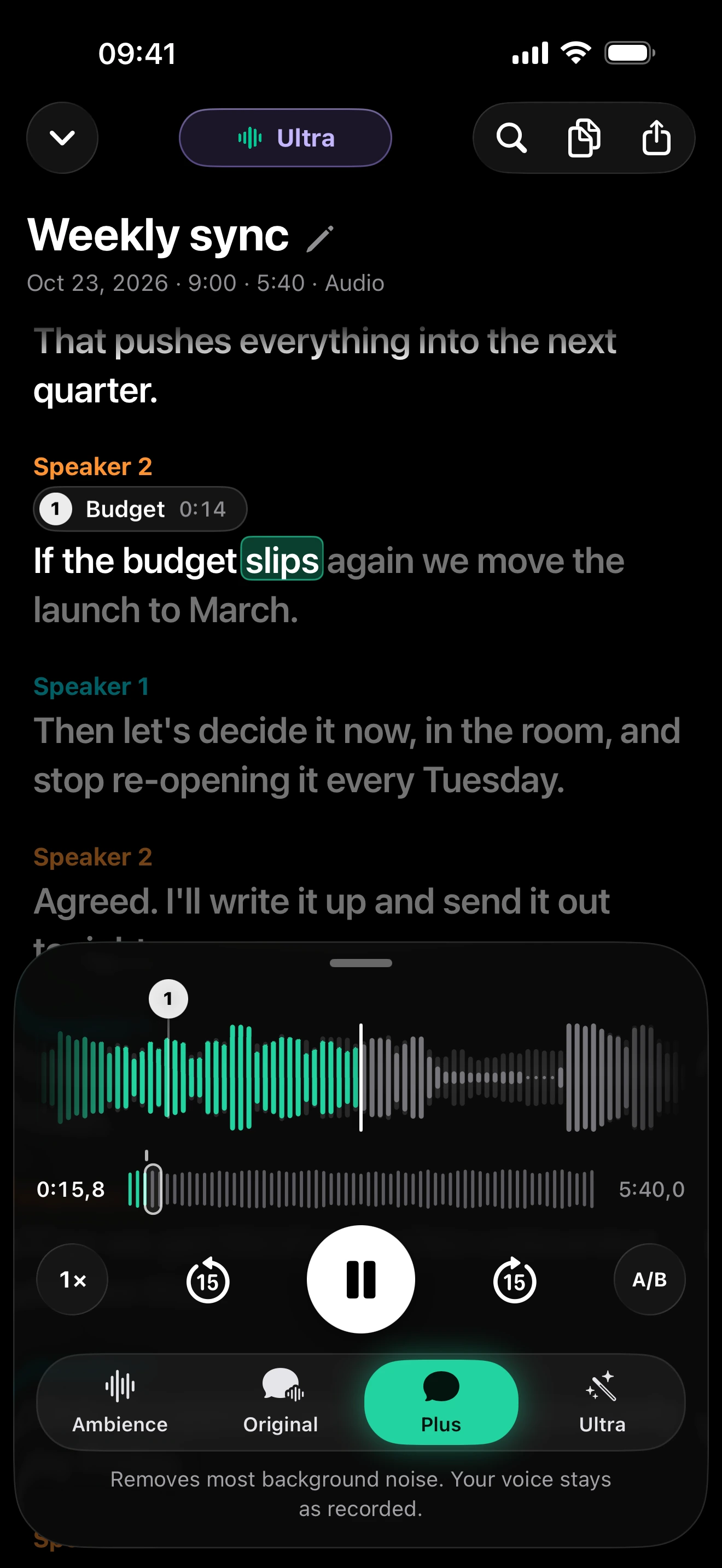
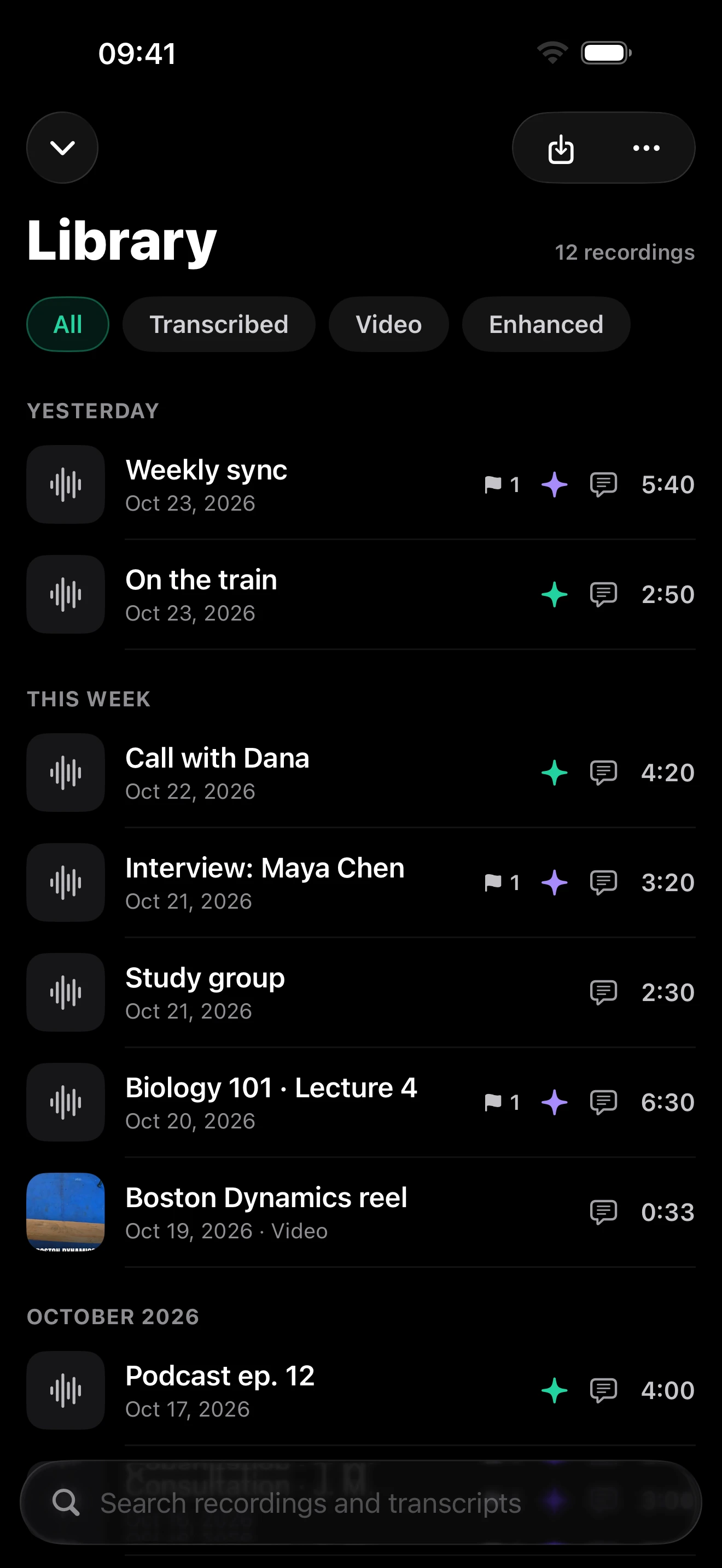
clir Voice is one option for those recordings. Plus removes background noise such as cafés, traffic, wind and room noise, and keeps the voice as recorded. Ultra also removes echo and rebuilds the voice with AI for a studio-microphone sound; because AI reconstruction can occasionally change a word, check names, numbers and quotes against the original, which always stays available. You can import existing recordings from Voice Memos, messaging apps, Files or the camera roll. Processing runs on the iPhone, and audio is never uploaded.
Plus · noise removalOn your iPhone
Here is a test clip with added background noise: the original, then Plus and Ultra.
Background noise
Original
Plus
Ultra
Reference words
COME COME SAID HOLMES KINDLY IT IS HUMAN TO ERR AND AT LEAST NO ONE CAN ACCUSE YOU OF BEING A CALLOUS CRIMINAL
I UNDERSTAND YOU TO SAY THAT THERE ARE THREE STUDENTS WHO USE THIS STAIR AND ARE IN THE HABIT OF PASSING YOUR DOOR YES THERE ARE
Sample details & credits
Read speech with added noise or room effects. Plus and Ultra processed in clir Voice 2.3 (5), iOS Simulator. Playback loudness adjusted.
LibriSpeech: Vassil Panayotov, Guoguo Chen, Daniel Povey and Sanjeev Khudanpur, from LibriVox audiobooks. CC BY 4.0.
Prevention for next time
Choose a case with clear cutouts for every microphone opening.
Keep the bottom edge clean, especially if the iPhone lives in a pocket.
Keep the iPhone away from water and moisture, which can muffle the microphones.
Hold the iPhone so your fingers don't cover the openings when you film or record.
The most common causes are a case, screen protector or debris blocking an opening, a Bluetooth device taking over as the microphone, or an app without microphone permission. Software glitches and hardware damage are less common; a restart, an iOS update or service covers those.
How do I test my iPhone microphone?
Record a voice memo while speaking near the bottom of the iPhone, then record a short video with each camera while speaking near the top, and play everything back. Apple uses these two tests to check the bottom, top and rear microphones.
Why can't people hear me on calls but speakerphone works?
Normal calls use the bottom microphone, while speakerphone and video use others. If only calls are affected, the bottom opening is the most likely to be blocked; remove the case and gently clean it, then test with Voice Memos.
How do I clean my iPhone microphone?
Remove the case and any screen protector, then gently clear the openings with a soft, dry brush. Avoid sharp objects and liquids, which can damage the microphone.
Why does my microphone work in some apps but not others?
Each app needs permission in Settings → Privacy & Security → Microphone, and Mic Mode is stored per app. If permission is on and the app still fails, update or reinstall it and contact its developer.