
clir Voice · iPhone video
Fix Your Video’s Audio on Your iPhone: Start to Finish
Using clir Voice, remove background noise from a video on iPhone, compare the result and export the cleaned clip. An Ultra subscription is required.
This walkthrough uses clir Voice to remove background noise from a video on iPhone and save the video with cleaned-up sound. You need an Ultra subscription on a compatible device to import, process and export videos.
The steps are:
- Import the video from Photo Library or Files.
- Choose Ultra → Generate.
- Compare with Original using A/B.
- Export Ultra → Video and save the file.
Check the built-in option first
For a video recorded with Spatial Audio on a supported iPhone, open Photos → Edit → Audio Mix → Studio to reduce background sound and room reverb. Apple's Audio Mix guide explains its recording requirements. If Audio Mix isn't available for your clip, or you want to try a different result, continue below.
clir Voice requires iOS 17 or later on iPhone, or iPadOS 17 or later on iPad. Ultra uses more working memory than Plus and may be unavailable on devices with insufficient memory. Check the available preview on your device before choosing a subscription.
Hear the original and processed sound
Words & credits
“Come, come,” said Holmes kindly, “it is human to err, and at least no one can accuse you of being a callous criminal.” “I understand you to say that there are three students who use this stair, and are in the habit of passing your door?” “Yes, there are.”
Speech from LibriSpeech, Vassil Panayotov, Guoguo Chen, Daniel Povey and Sanjeev Khudanpur, from LibriVox audiobooks. CC BY 4.0. Added background noise; Ultra processed in clir Voice.
1. Import the video
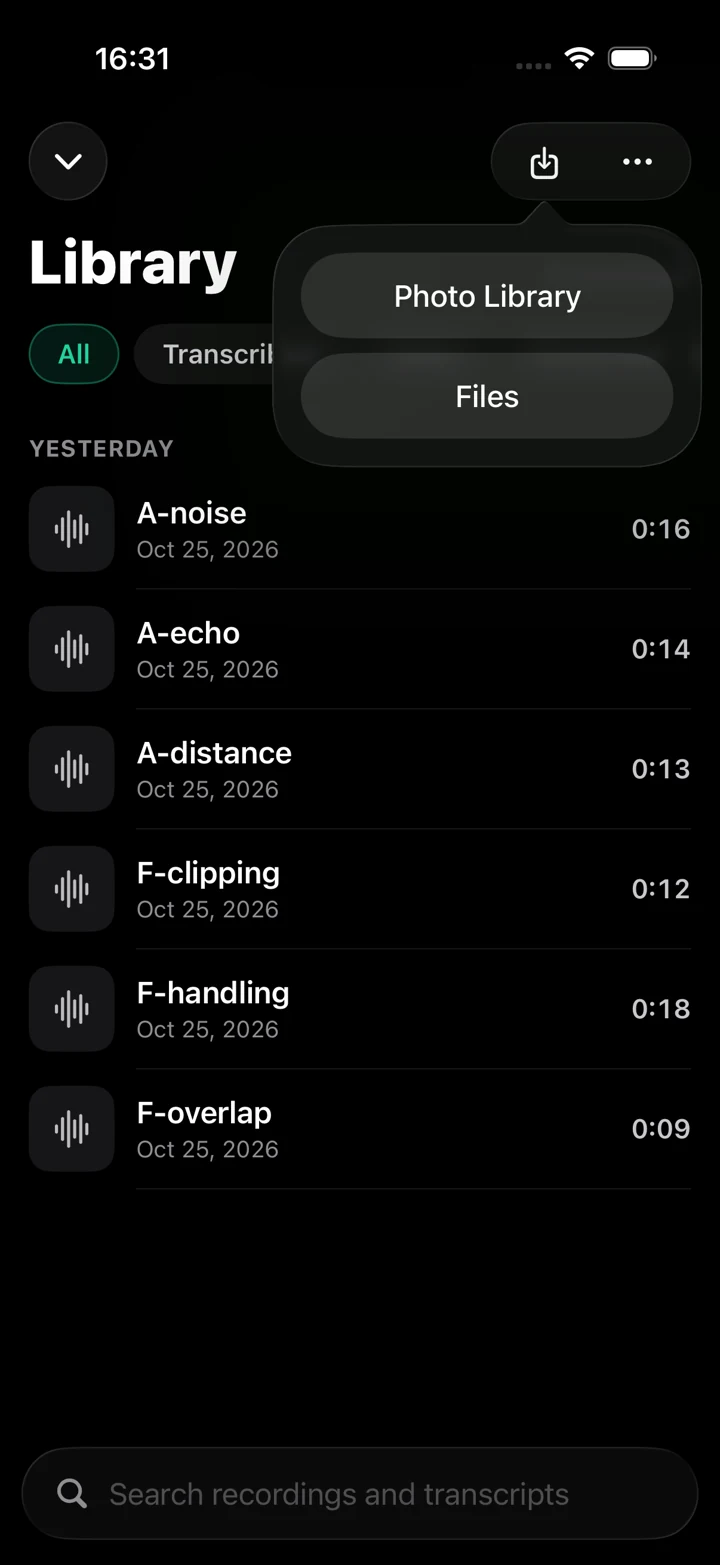
Open Import in clir Voice. Choose Photo Library for a clip in Photos, or Files for a saved file.
Select the video and wait for it to appear in the library. Open it and check that you have the right picture and sound.
clir Voice 2.3 (5) · Simulator
If import fails, check that the source plays and is fully downloaded from cloud storage. Keep the original while checking format compatibility.
2. Generate Ultra
Open the recording and select Ultra. Tap Generate, labeled Ultra enhanced beneath the button.
Complete a model download if the app requests one, then wait for the version to be ready. Have your Ultra subscription and the required model ready before working without a connection.
Ultra reduces noise and echo, then rebuilds the voice.
3. Compare the important passage
Find a sentence where the background is distracting. Hold A/B to hear Original and release to return to Ultra.
Check whether the words are easier to follow and whether the voice suits the video. Ultra can change words, so verify names, numbers and quotations against Original.
Also check a quieter sentence. For help identifying the problem, use the three-audio-mistakes guide.
4. Export the video
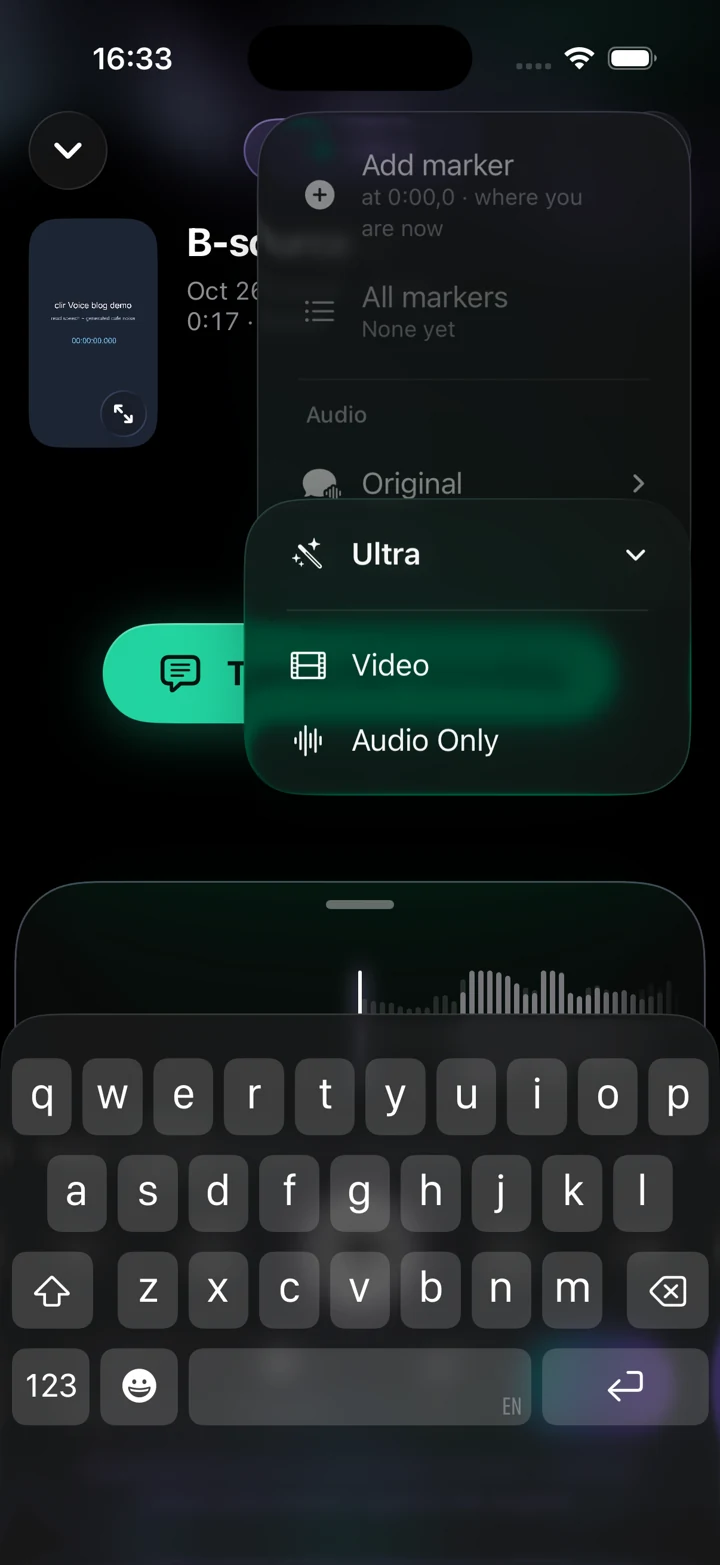
Tap the share button, choose Ultra, then Video. In the share sheet, choose Save Video to save to Photos and allow the permission if requested. Choose another share destination if that suits your workflow.
clir Voice 2.3 (5) · Simulator
Audio Only exports the sound without the video.
Open the saved video outside clir Voice. Check the start, end, orientation and speech synchronization. If another editor adds music, titles or cuts, check that editor's final output too.
Before uploading
Use the YouTube audio checklist to check volume changes, handling noise and the final export.