clir Voice · Mobile recording
How to Record Audio on iPhone (Free, Step by Step)
How to record audio on iPhone with the free Voice Memos app: record, pause and resume, Mic Mode, recording settings and tips for better sound.
To record audio on iPhone, open the free Voice Memos app (in the Utilities folder), tap the red record button, and tap the blue checkmark when you are finished; the recording is saved automatically. To pause, tap the pause button and tap it again to continue. For better sound, move the iPhone closer to the person speaking and choose Voice Isolation in Control Center while recording.
Below are the full steps, the settings worth changing, and what to do when you need a transcript or cleaner sound.
Method 1: Voice Memos (built in, free)
Voice Memos comes with every iPhone. Apple describes it as a portable recorder for notes, lectures, musical ideas and more, and it works with the built-in microphone, a supported headset or an external microphone.
Make a basic recording
- Open Voice Memos. It is in the Utilities folder; you can move it to the Home Screen or find it by swiping down on the Home Screen and searching.
- Tap the red Record button.
- Speak, or point the iPhone at what you are recording. To adjust the level, Apple's advice is simply to move the microphone closer to or farther from the sound.
- Tap the blue checkmark at the top to finish. The recording is saved.
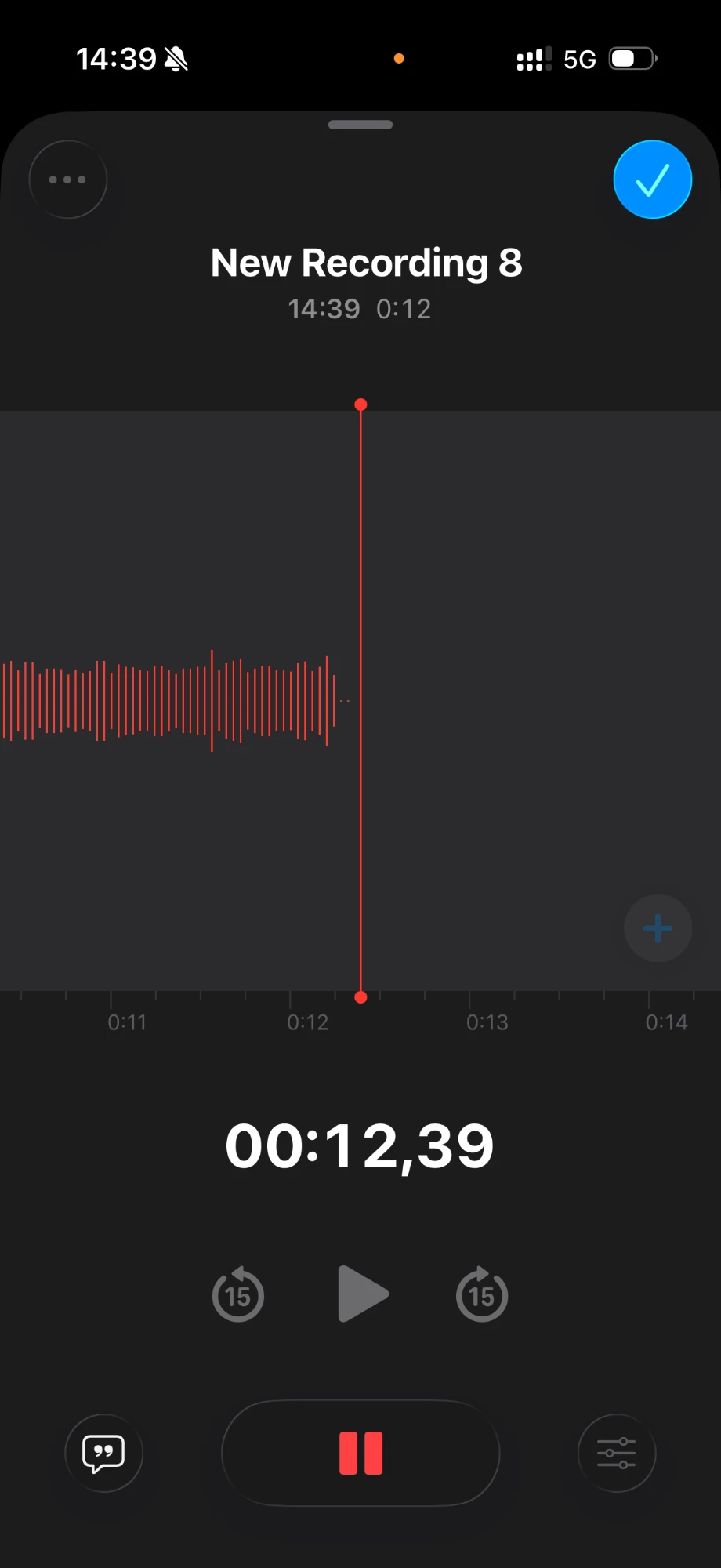
Your recording is saved as New Recording, or with the name of your location if Location Services is on for Voice Memos. To rename it, tap the recording, tap the name and type a new one.
An orange dot at the top of the screen shows that the microphone is in use.
Record in parts: pause and resume
- Tap Record to start.
- Swipe up from the top of the waveform to see more details while you record.
- Tap the red pause button to pause, then tap it again to continue.
- To listen back, tap play. Drag the waveform left or right to change where playback starts.
- Tap the blue checkmark to save.
Keep recording while you use other apps
You can leave Voice Memos and open another app while recording, as long as that app does not play audio. If the other app starts playing sound, Voice Memos stops recording. On models with the Dynamic Island, the recording in progress shows there; tap it to go back.
Mute the start and stop tones
Turn on Silent mode in Control Center before you record, and the start and stop tones are muted.
Settings that improve the recording
Mic Mode: Voice Isolation or Wide Spectrum
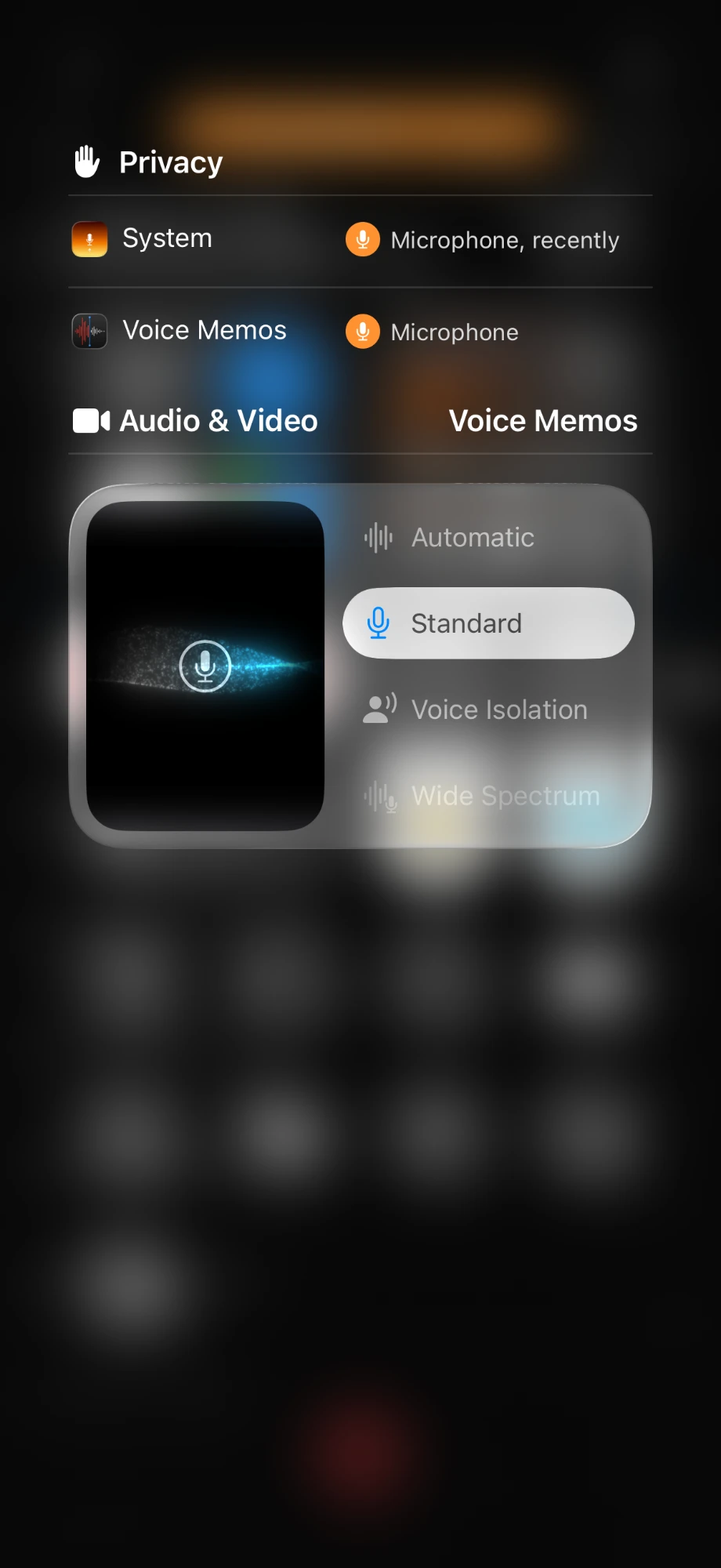
While Voice Memos is recording or open, you can change how the microphone handles background sound:
- Open Control Center.
- Tap Voice Memos at the top.
- Choose Voice Isolation to filter out background sounds, or Wide Spectrum to keep them.
Voice Isolation is the better choice for speech in a noisy place; Wide Spectrum suits music or ambience. Apple notes that Wide Spectrum isn't available on all models.
Recording Mode: mono, stereo or Spatial Audio
Go to Settings → Apps → Voice Memos → Recording Mode:
- Mono: the same sound in both ears. Simple and fine for one voice.
- Stereo: separate left and right channels, recorded with several microphones.
- Spatial Audio: immersive playback that seems to come from all directions. Not available on all models.
On supported iPhones, recordings with the built-in microphone use Spatial Audio automatically, while earlier models record in mono unless you turn on stereo.
iCloud sync
If Voice Memos is turned on in iCloud settings, recordings appear on your iPad and Mac signed in to the same Apple Account. That is the easiest way to get a recording onto a computer for editing.
Tips for better sound
- Get close. For one voice, hold or place the iPhone about 15 to 30 cm (6 to 12 inches) from the speaker, with the bottom edge pointing toward them.
- Choose a soft room. Rugs, curtains and furniture reduce echo; bare kitchens and stairwells add it.
- Keep the openings clear. Don't cover the bottom microphone with a finger or a case.
- Do a 10-second test. Record, play it back on headphones, then do the real take.
- Use an external microphone for interviews and podcasts. Apple lists microphones and audio interfaces marked "Made for iPhone" or "Works with iPhone" for stereo recording.
Method 2: clir Voice (record, transcribe and clean up)
If you need more than a sound file, such as a transcript, searchable recordings or cleaner sound, a third-party recorder can help. clir Voice is one option.
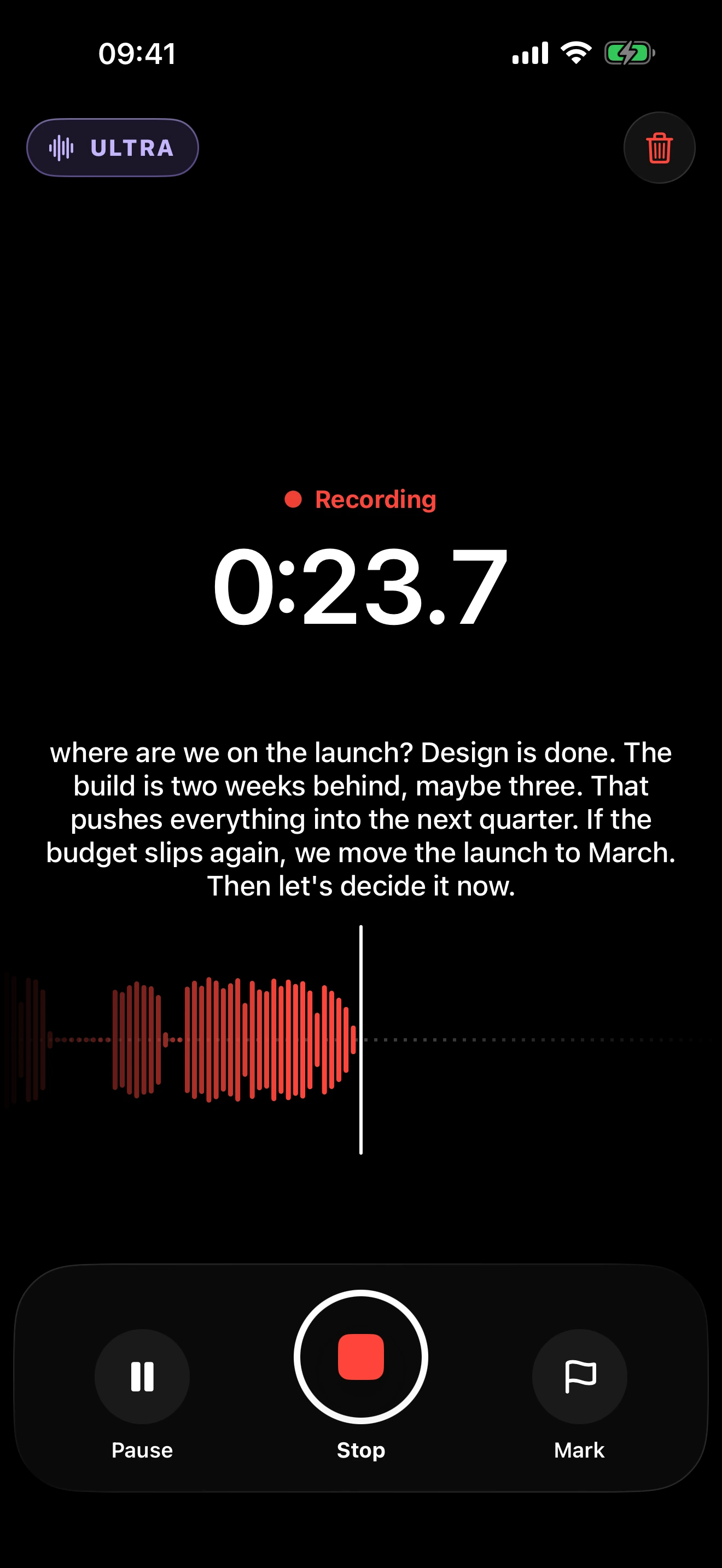
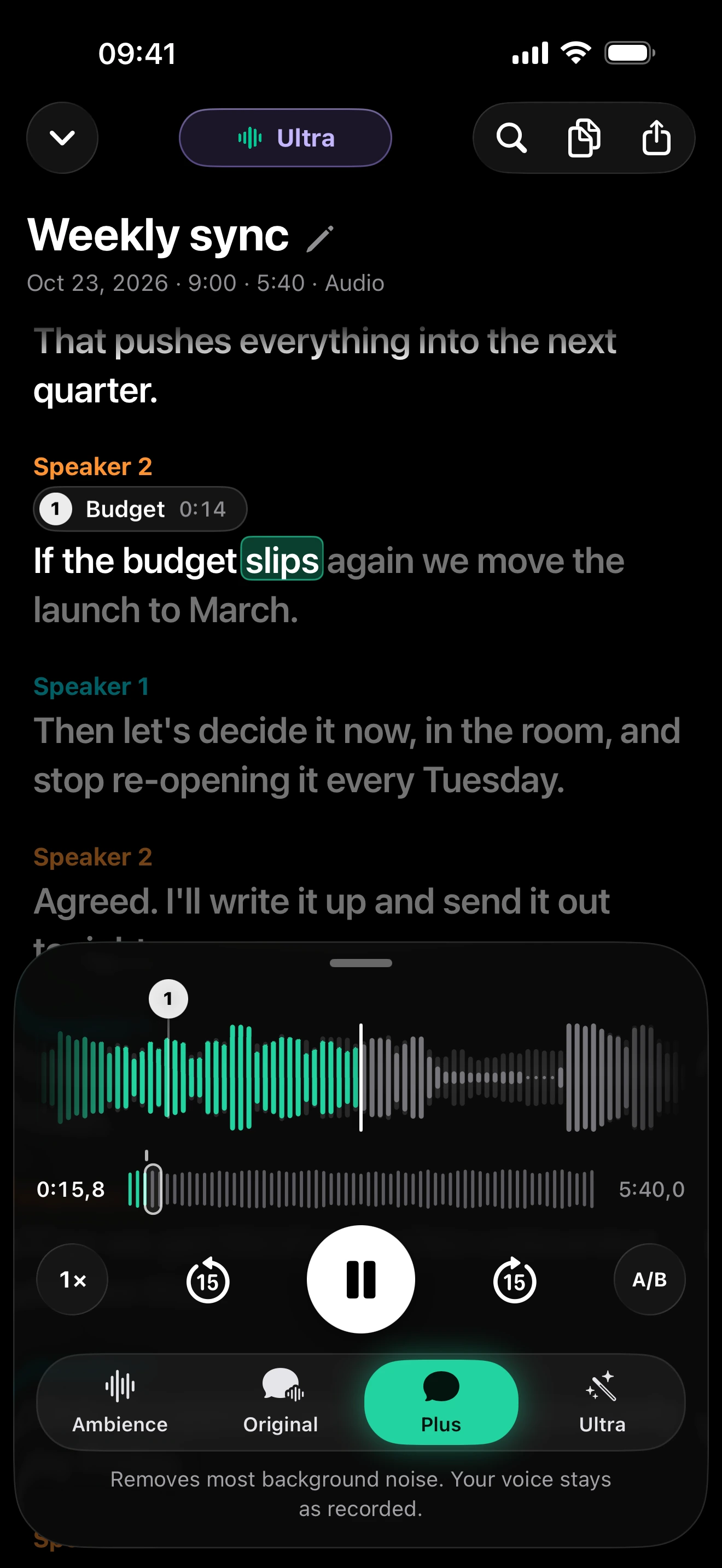
- Record with live captions. clir Voice shows live captions while you record and creates a full transcript with speaker labels afterward.
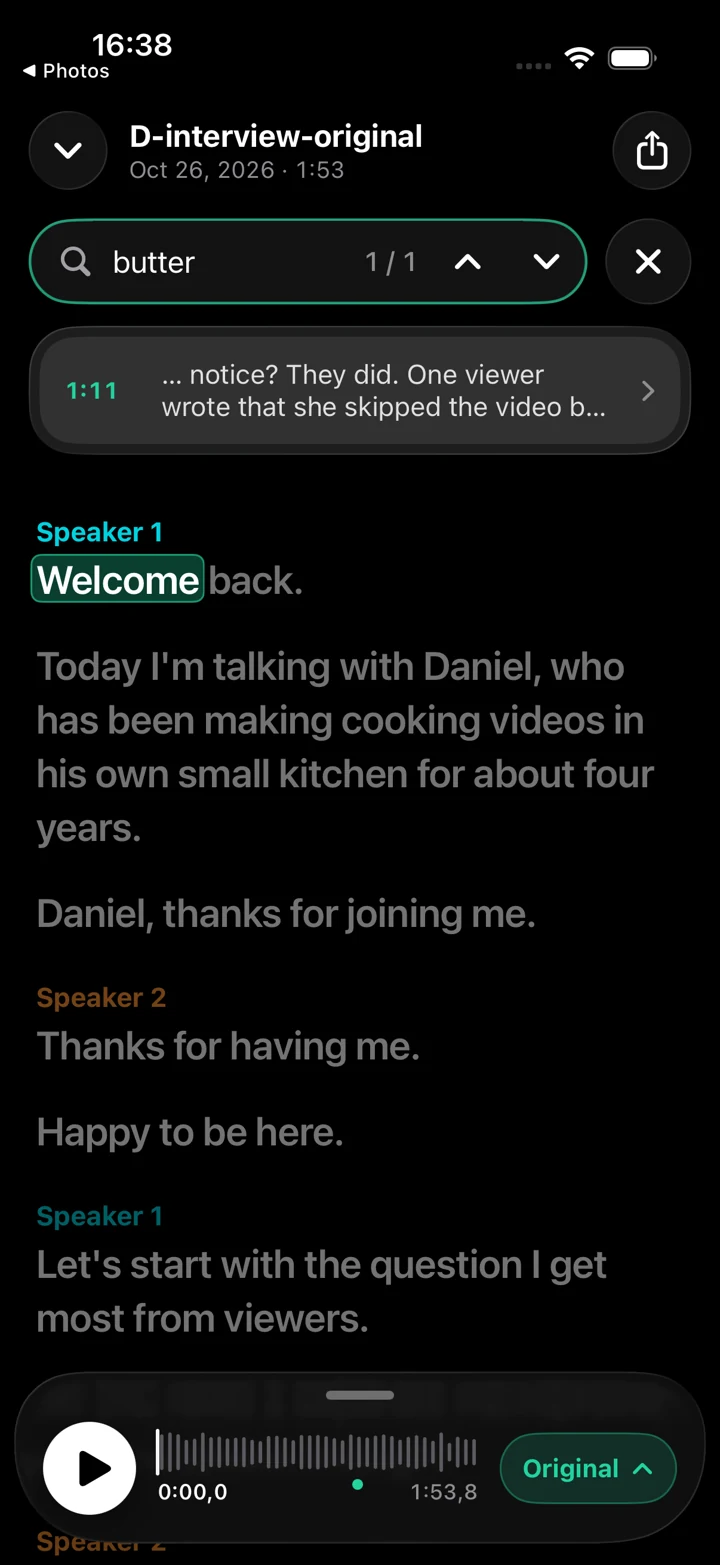
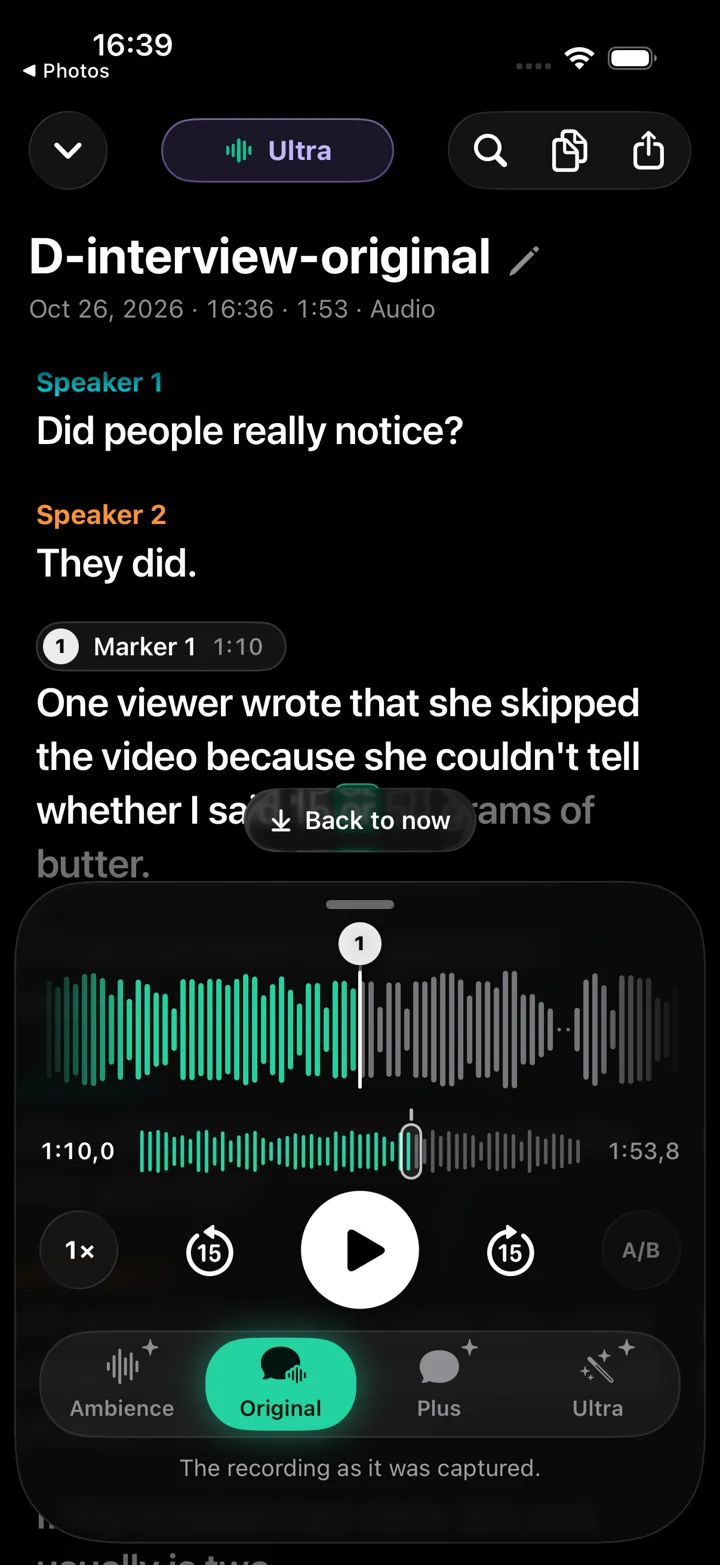
- Find things later. Search across all recordings, tap a word in the results to jump to that second, and set markers on important passages.
- Clean up the sound. Plus removes background noise such as cafés, traffic, wind and room noise and keeps the voice as recorded. Ultra also removes echo and rebuilds the voice with AI for a studio-microphone sound; check names, numbers and quotes against the original, since AI reconstruction can occasionally change a word.
- Works offline. Transcription and noise removal run on the iPhone, and audio is never uploaded. After the speech and sound models are downloaded once, it works without a connection, even in flight mode.
- Apple Watch. Record on the watch, and the recording transfers to the iPhone for transcription and, with Plus or Ultra, cleanup.
clir Voice 2.3 (5) · Simulator
Other ways to record audio
- GarageBand (free, from Apple): multitrack recording for music and podcasts.
- Camera app: a video records sound too; you can extract the audio later.
- Phone calls: Voice Memos cannot record calls.
FAQ
How do I record audio on my iPhone?
Open Voice Memos from the Utilities folder, tap the red record button, and tap it again to stop. The recording saves automatically as New Recording or with your location's name, and you can rename it by tapping the name.
Is there a time limit on Voice Memos?
Apple's Voice Memos guide doesn't mention a recording time limit. In practice, long recordings are limited by free storage, so check that you have space before recording a long lecture or meeting.
Can I record audio on iPhone while using other apps?
Yes. Start recording in Voice Memos, then go to the Home Screen and open another app. If that app plays audio, Voice Memos stops recording.
Where are voice recordings saved on iPhone?
Recordings are saved in the Voice Memos app. If Voice Memos is turned on in iCloud settings, they are also stored in iCloud and appear on your iPad and Mac signed in to the same Apple Account.
How do I make my iPhone recordings sound better?
Move closer to the sound source, record in a soft room, and choose Voice Isolation in Control Center for speech. For recordings that are already noisy, a cleanup app can remove background noise afterward.