

clir Voice · iPhone tips
iPhone Microphone Settings and Mic Mode Explained
iPhone microphone settings explained: Mic Mode (Voice Isolation, Wide Spectrum), Camera Record Sound, Voice Memos options and mic permissions.
iPhone microphone settings live in four places: Mic Mode in Control Center (Voice Isolation, Wide Spectrum, Standard, Automatic), Settings → Camera → Record Sound for video, Settings → Apps → Voice Memos for voice recordings, and Settings → Privacy & Security → Microphone for which apps may use the mic. There is no single "microphone" page in Settings, which is why the options are easy to miss.
Here is what each one does on iOS 26 and later. For step-by-step advice on recording in a noisy place, see how to reduce background noise when recording on iPhone.
Where the iPhone microphones are
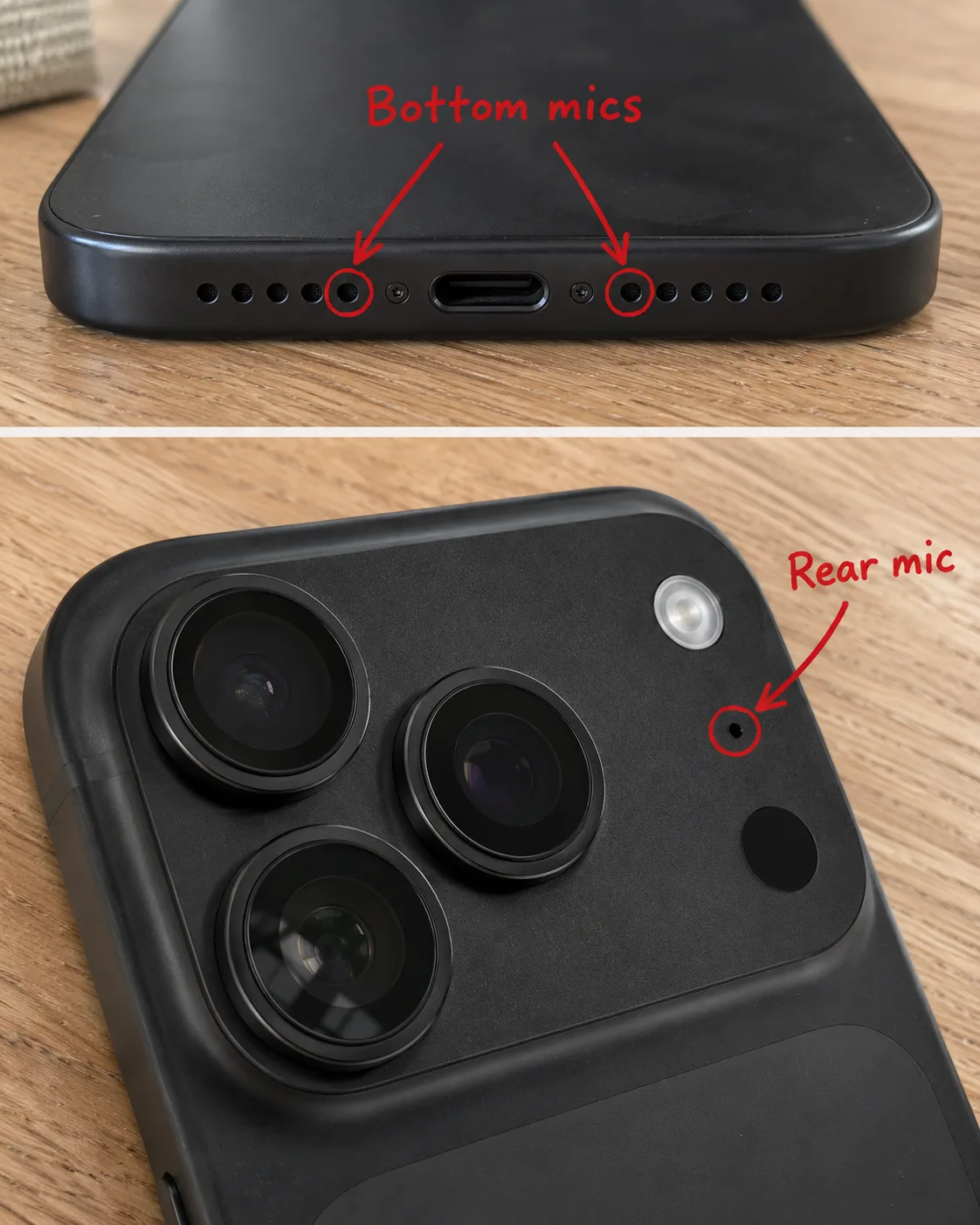
Most recent iPhones have several microphones: on the bottom edge next to the charging port, at the top front near the earpiece and front camera, and on the back next to the rear cameras. The iPhone combines them for stereo and Spatial Audio recording and for filtering noise.
In practice:
- For a voice memo, point the bottom edge toward the person speaking.
- When filming with the rear camera, keep the small hole beside the lenses uncovered.
- Remove a case or screen protector that covers any of the openings, and clear dust from them.
Mic Mode (Control Center)
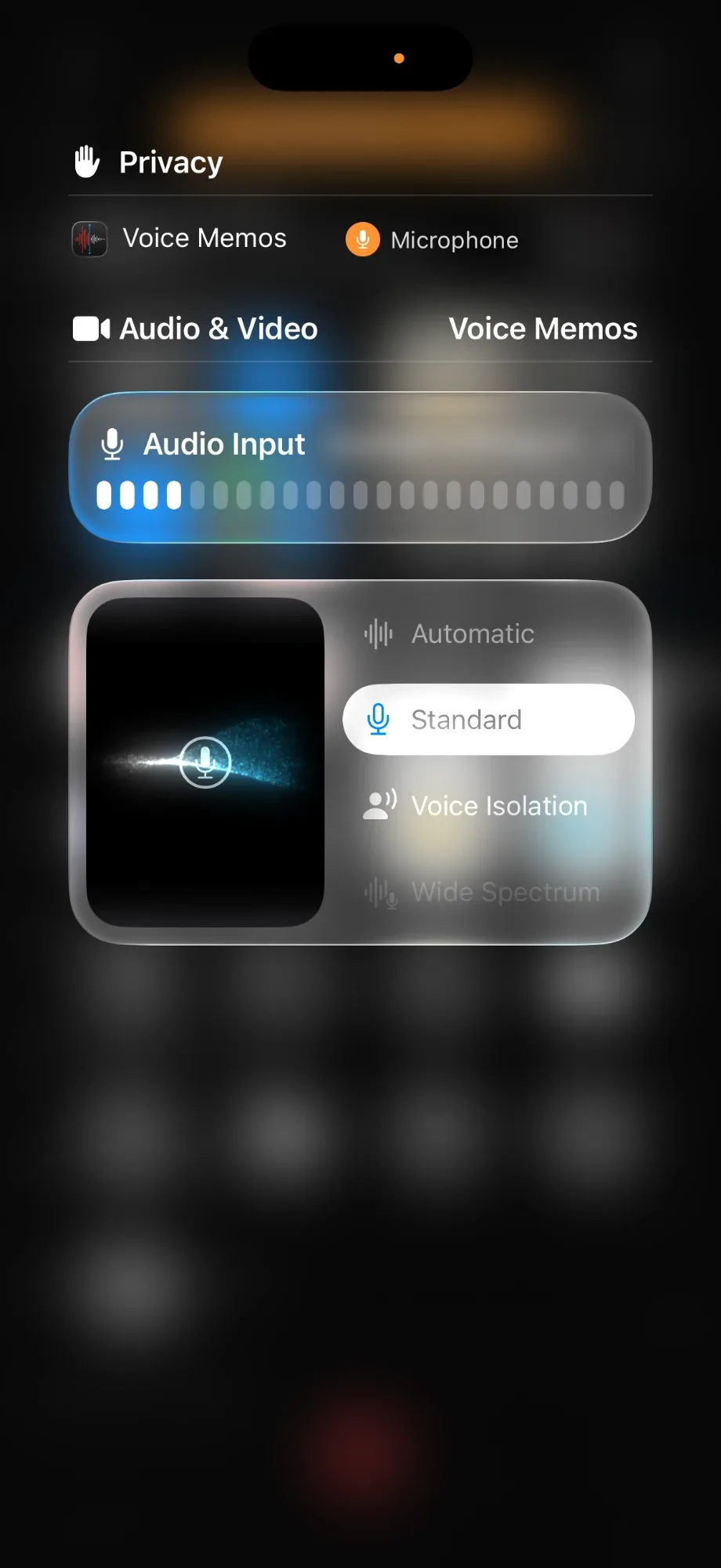
Mic Mode filters the microphone signal while you record or call. Apple lists four modes:
| Mode | What it does | Use it for |
|---|---|---|
| Voice Isolation | Emphasizes your voice and filters out background noise | Calls and voice recordings in noisy places |
| Wide Spectrum | Keeps background sounds unfiltered | Music, a group around one phone, ambience |
| Standard | Standard voice processing | Normal use |
| Automatic | Picks the mode for you (iOS 18 or later) | When you don't want to think about it |
How to change it:
- Start a call or recording, so the app is using the microphone.
- Open Control Center (swipe down from the top-right corner).
- Tap the app's controls at the top of Control Center.
- Choose a mode.
Where it works, according to Apple:
- FaceTime and some third-party apps: iOS 15 or later.
- Phone calls: Voice Isolation since iOS 16.4. Wide Spectrum isn't available for phone calls.
- Recording apps such as Voice Memos and some third-party apps: iOS 26 or later.
- Devices: iPhone XR, iPhone XS and later.
The mode is remembered per app, so changing it in Voice Memos doesn't change FaceTime. And it is applied while recording, so a voice isolated recording can't be "un-isolated" later.
The same panel shows Input when more than one mic is connected, so you can pick an external microphone. On iOS 26.1 and later, supported wired mics (such as EarPods with a USB-C connector) also get an input gain slider there.
Camera: Record Sound
Go to Settings → Camera → Record Sound:
- Spatial Audio (iPhone 16 or later): immersive sound you can edit later in Photos with Audio Mix (Standard, In-Frame, Studio, Cinematic).
- Stereo: separate left and right channels. Earlier iPhone models record in Stereo.
- Mono: the same sound in both ears.
On iPhone 16 or later, Wind Noise Reduction is on by default for Spatial Audio and Stereo, and you can turn it off in the same screen. Keep Spatial Audio if you want the option of cleaning up the sound in Photos later.
Supported AirPods can also act as the microphone when you record video. Apple covers this in the AirPods User Guide.
Voice Memos settings
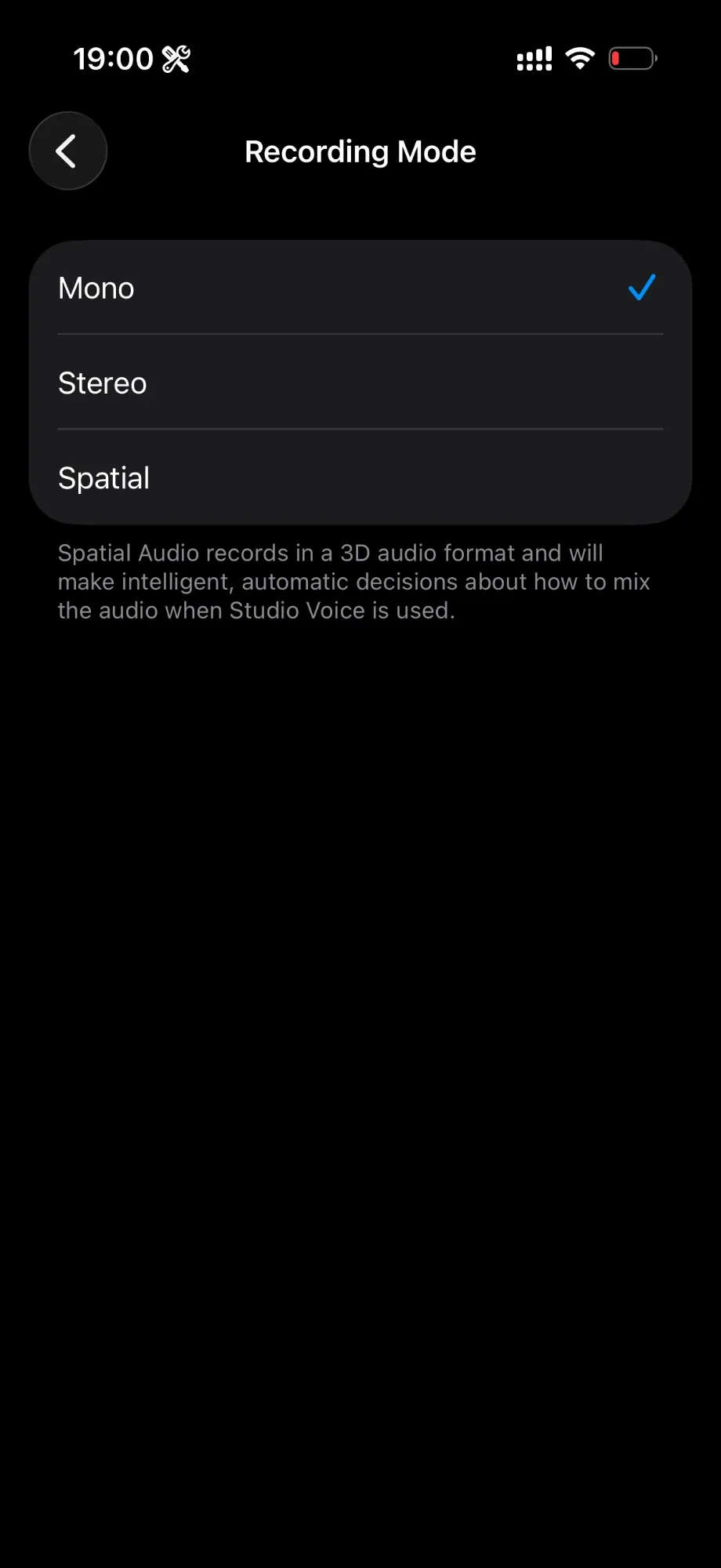
Go to Settings → Apps → Voice Memos:
- Recording Mode: Mono, Stereo or Spatial. Spatial isn't available on all models. With Stereo or Spatial, Voice Memos records with several microphones.
- Audio Quality: Compressed or Lossless. Compressed saves storage and is fine for speech. Lossless keeps more detail and makes much larger files, which is worth it for music or audio you plan to edit and publish.
- Clear Deleted: how long deleted recordings stay in Recently Deleted (30 days by default).
Inside the app, open a recording, tap the More button, then Options:
- Enhance Recording reduces background noise and echo when you play Mono and Stereo recordings.
- Studio Sound (named Studio Voice in iOS 26) adjusts background sound and reverb in Spatial Audio recordings.
- Skip Silence jumps over gaps during playback.
Apple notes these playback options don't change the recording file itself.
Microphone permission per app
Apps must ask before using the microphone. To check or change access:
- Open Settings → Privacy & Security → Microphone.
- Turn the switch on or off for each app.
If one app can't hear you but others can, this list is the first place to look. An orange dot at the top of the screen means an app is using the microphone; a green dot means the camera (with or without the mic) is in use.
Accessibility audio settings that are not mic settings
Two settings in Settings → Accessibility → Audio & Visual are often mistaken for microphone options. Background Sounds plays sounds like rain or ocean waves; it does not record anything. Phone Noise Cancellation reduces ambient noise you hear on calls with the phone at your ear, and Apple lists it for iPhone 12 and earlier. If one of those is what you meant, how to turn off background noise on iPhone covers both.
When the settings aren't enough
Mic Mode and Audio Mix only help with new recordings, or with Spatial Audio videos from recent models. For an older recording, a voice note from a messaging app or a file from another device, a cleanup app is the next step.
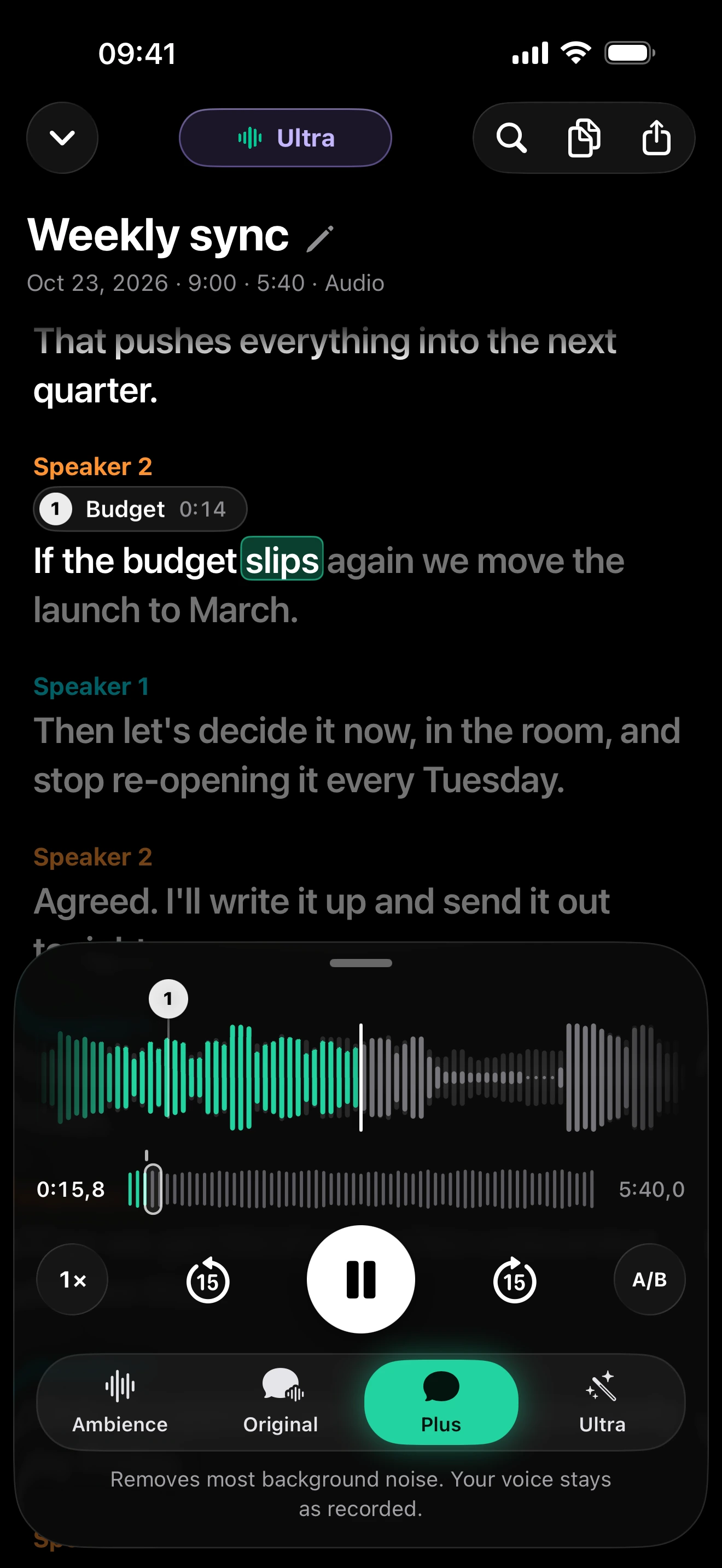
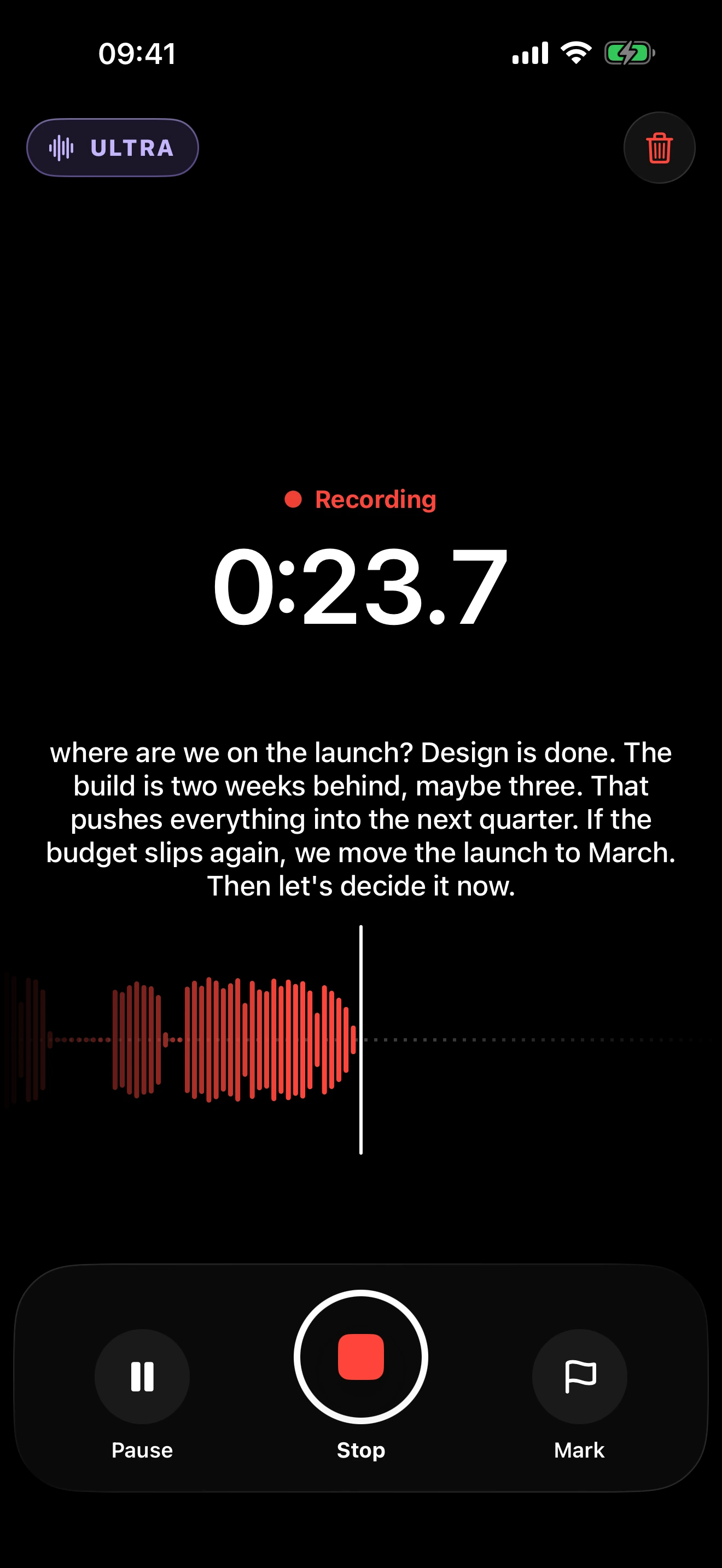
clir Voice is one option: Plus removes background noise while keeping the voice as recorded, and Ultra also removes echo and rebuilds the voice with AI (check names and numbers against the original). Both are subscriptions, and the preview is free. The app also transcribes on the iPhone, with live captions while recording. To turn existing recordings into text, see how to transcribe Voice Memos on iPhone.
FAQ
How do I change the microphone settings on my iPhone?
Use Control Center during a recording or call to change Mic Mode, Settings → Camera → Record Sound for video, and Settings → Apps → Voice Memos for voice recordings. App access is under Settings → Privacy & Security → Microphone.
Is Voice Isolation or Wide Spectrum better?
Voice Isolation is better for speech in noisy places because it filters out background sound. Wide Spectrum is better when you want everything around you, such as music or several people around one phone.
Why don't I see Mic Mode in Control Center?
The controls appear only while an app is using the microphone. Recording apps need iOS 26 or later, and the iPhone must be an iPhone XR, XS or newer.
How do I check which apps can use my microphone?
Go to Settings → Privacy & Security → Microphone. Every app that has asked for access is listed there with a switch.