

clir Voice · iPhone tips
How to Turn Off Background Noise on iPhone
How to turn off background noise on iPhone: stop Background Sounds, use Voice Isolation on calls, and cut noise in recordings on iOS 26.
"Background noise" on iPhone means one of three things, and each has a different switch:
- Rain, ocean or white noise playing by itself? That is Background Sounds. Turn it off in Settings → Accessibility → Audio & Visual → Background Sounds, or hold the Background Sounds button in Control Center and tap it to stop.
- Noise on calls? During a call, open Control Center, tap the call app's controls at the top and choose Voice Isolation, so the other person hears less of your surroundings.
- Noise in your recordings? In Voice Memos and other recording apps on iOS 26 or later, choose Voice Isolation the same way while recording. For video, check Settings → Camera → Record Sound.
Paths are checked against Apple's iPhone User Guide for iOS 26 and iOS 27.
1. Turn off Background Sounds (rain, ocean, white noise)
Background Sounds is an Accessibility feature that plays calming sounds such as rain, ocean waves or balanced noise to help you focus or rest. If your iPhone suddenly plays a soft hiss or rain under everything, it is almost always this.
Turn it off in Settings:
- Open Settings.
- Tap Accessibility, then Audio & Visual, then Background Sounds.
- Turn off Background Sounds.
Turn it off from Control Center:
- Open Control Center (swipe down from the top-right corner).
- Touch and hold the Background Sounds button.
- Tap the Background Sounds icon to stop playback.
If you don't see the button, add it by customizing Control Center, or use the Settings path above.
Stop it from coming back. In the same Background Sounds screen:
- Turn on Stop Sounds When Locked, so it ends when the iPhone locks.
- Turn off Use When Media is Playing if you only hear it under music or videos.
- Use Stop Sound with a Timer if you like it for falling asleep but not all night.
- If it starts at the same time every day, check Shortcuts → Automation and your Focus settings. A shortcut or Focus can turn Background Sounds on automatically.
If the sound continues after all this, check the Accessibility Shortcut too: Background Sounds can be assigned to a triple-click of the side button, which makes it easy to start by accident.
2. Reduce background noise on calls
Here "background noise" can mean noise the other person hears from your side, or noise you hear on your side.
What the other person hears: Voice Isolation
Voice Isolation filters out the sound around you so your voice comes through. Apple's Mic Mode article lists it for phone calls since iOS 16.4, and for FaceTime and some third-party call apps since iOS 15. It needs iPhone XR, iPhone XS or later.
- Start the call.
- Open Control Center.
- Tap the call app's controls at the top of Control Center.
- Choose Voice Isolation.
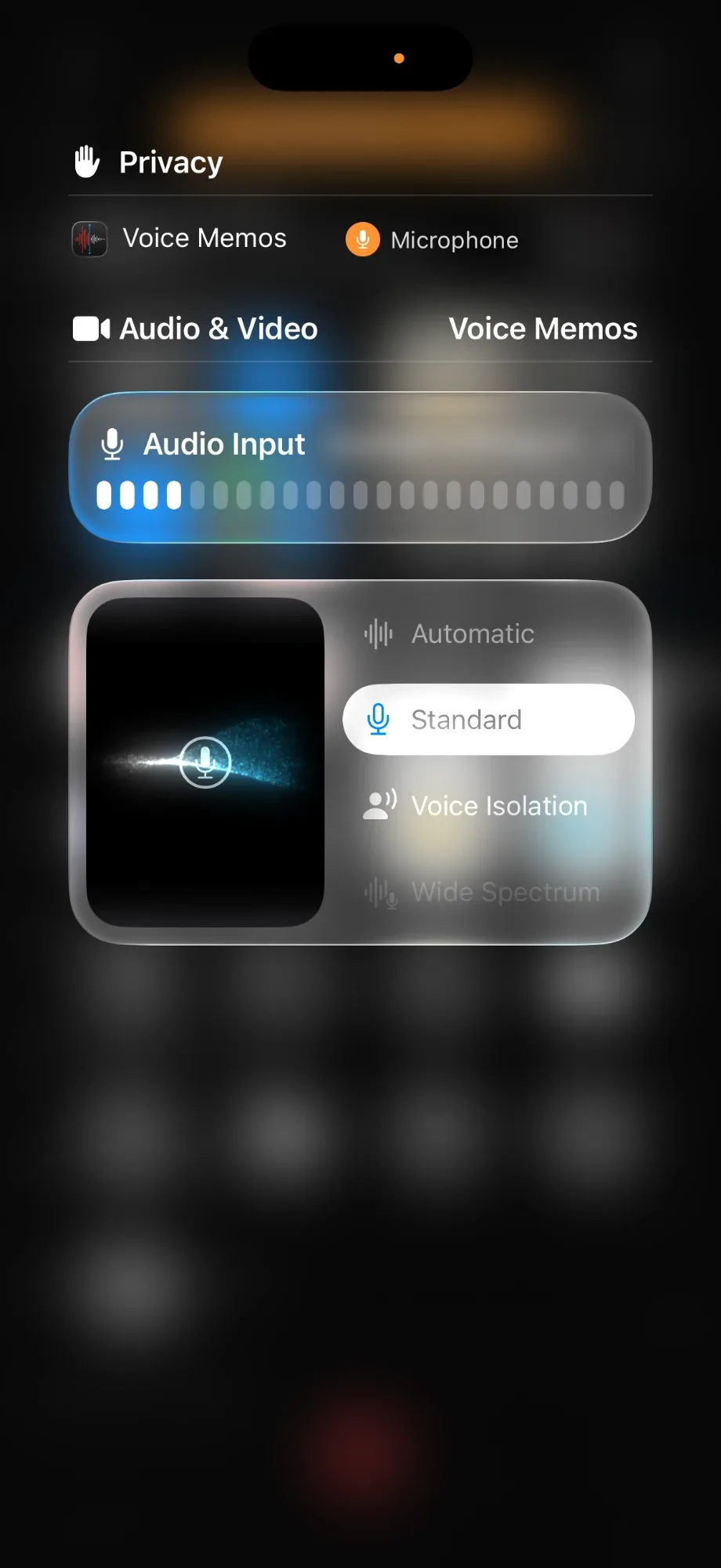
The other options are Standard, Automatic (iOS 18 or later; it uses Voice Isolation when you hold the phone to your ear and Standard on speakerphone) and Wide Spectrum, which deliberately keeps all background sound. Wide Spectrum isn't available for phone calls. If it is selected in FaceTime or another call app, switch back to Voice Isolation or Standard.
The choice is remembered per app. Setting Voice Isolation in one call app doesn't change FaceTime, so set it once in each call app you use.
What you hear: Phone Noise Cancellation
Settings → Accessibility → Audio & Visual → Phone Noise Cancellation reduces ambient noise when you hold the receiver to your ear. Apple lists it as available, and on by default, on iPhone 12 and earlier. On iPhone 13 and later the switch isn't there. With AirPods, use their noise control modes (Noise Cancellation or Transparency) instead.
3. Reduce background noise in recordings
Voice Memos and other recording apps
From iOS 26, Voice Isolation also works in recording apps such as Voice Memos and some third-party apps:
- Open Voice Memos and start recording.
- Open Control Center and tap Voice Memos at the top.
- Choose Voice Isolation. (Choose Wide Spectrum if you want to keep the background.)
It is applied as you record, and Voice Memos remembers it for the next recording.
Videos from the Camera app
Go to Settings → Camera → Record Sound. On iPhone 16 or later, choose Spatial Audio and keep Wind Noise Reduction on. Spatial Audio videos can then be cleaned up later in Photos → Edit → Audio Mix, where Studio reduces background sounds and reverb and In-Frame reduces sounds from sources that aren't in the shot.
The biggest single fix: distance
No setting beats getting the phone closer to the speaker. For speech, 15 to 30 cm (6 to 12 inches) from the mouth keeps the voice well above the room. The full method, with placement and settings in order, is in how to reduce background noise when recording on iPhone.
4. Noise that is already in a recording
Settings only help with new recordings. For a file you already have:
- Voice Memos: open the recording, tap the More button, then Options, and turn on Enhance Recording (Mono and Stereo recordings) or Studio Sound (Spatial Audio recordings; called Studio Voice in iOS 26). Apple notes these are playback options and don't change the file itself.
- Photos: Audio Mix for Spatial Audio videos from iPhone 16 or later.
- A cleanup app for anything else, such as an older video, a voice message or an interview from another device.
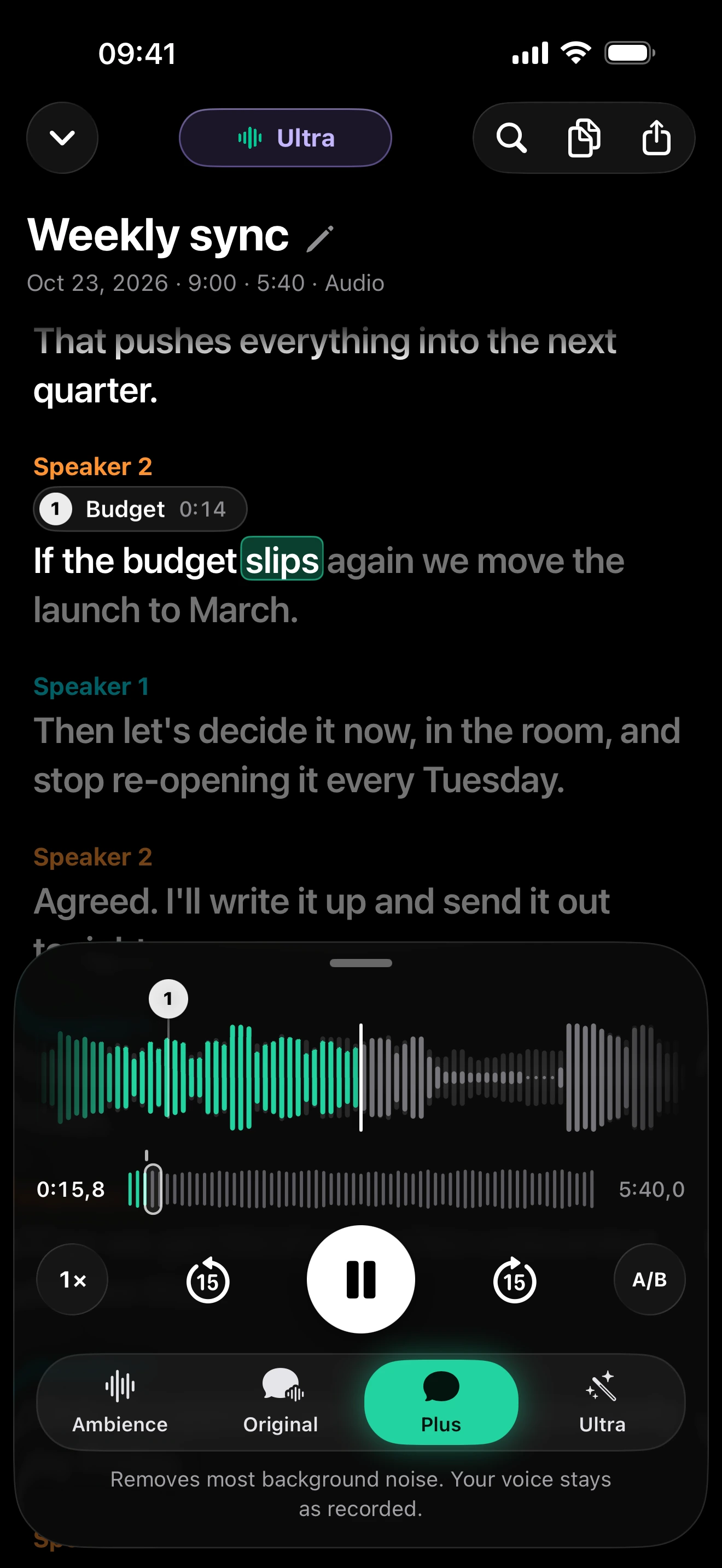
clir Voice is one option for that last case. Plus removes background noise like cafés, traffic and wind while keeping the voice as recorded. Ultra also removes echo and rebuilds the voice with AI; it can occasionally change a word, so check names and numbers against the original, which always stays available. Both are subscriptions, and video cleanup is part of Ultra. Processing happens on the iPhone and the audio is never uploaded.
Original
Plus
Ultra
Reference words
COME COME SAID HOLMES KINDLY IT IS HUMAN TO ERR AND AT LEAST NO ONE CAN ACCUSE YOU OF BEING A CALLOUS CRIMINAL
I UNDERSTAND YOU TO SAY THAT THERE ARE THREE STUDENTS WHO USE THIS STAIR AND ARE IN THE HABIT OF PASSING YOUR DOOR YES THERE ARE
Sample details & credits
Read speech with added noise or room effects. Plus and Ultra processed in clir Voice 2.3 (5), iOS Simulator. Playback loudness adjusted.
LibriSpeech: Vassil Panayotov, Guoguo Chen, Daniel Povey and Sanjeev Khudanpur, from LibriVox audiobooks. CC BY 4.0.
Other tools: Adobe Podcast Enhance Speech (web) for audio files, and desktop editors such as Audacity's Noise Reduction effect for steady hum or hiss.
Prevention for next time
- Leave Stop Sounds When Locked on if you use Background Sounds at night.
- Set Voice Isolation once in every call and recording app you use.
- Keep Wind Noise Reduction on for outdoor video.
- Record a 10-second test and play it back on headphones before anything important.
- For everything the iPhone lets you change about its mics, see the iPhone microphone settings guide.
FAQ
Why is my iPhone playing white noise or rain sounds?
That is Background Sounds, an Accessibility feature. Turn it off in Settings → Accessibility → Audio & Visual → Background Sounds, and check your Accessibility Shortcut, Shortcuts automations and Focus settings if it keeps starting by itself.
How do I stop people hearing my background noise on calls?
Open Control Center during the call, tap the call app's controls and choose Voice Isolation. It works on phone calls from iOS 16.4 and on FaceTime and some other call apps from iOS 15.
Where is Phone Noise Cancellation on iPhone 13 and later?
It isn't there. Apple lists Phone Noise Cancellation for iPhone 12 and earlier; on newer models, use Voice Isolation for what others hear and AirPods noise control for what you hear.
Can I remove background noise from a recording I already made?
Yes, partly. Voice Memos has Enhance Recording for playback, Photos has Audio Mix for Spatial Audio videos, and apps such as clir Voice can remove noise from existing audio files and (with Ultra) videos.