To transcribe a voice memo on iPhone, open Voice Memos, tap the recording, tap More (the three dots) and choose View Transcript, or Copy Transcript to copy all of it. Voice Memos transcribes speech automatically on iPhone 12 or later in supported languages, both live while you record and for saved recordings. No extra app is needed.
If you need speaker labels, a language Voice Memos doesn't cover, or search across many interviews, a dedicated transcription app is the next step.
What you need
Apple lists these requirements for Voice Memos transcription:
iPhone 12 or later.
A supported language: English (all variants), Spanish, Portuguese, Italian, French, German, Japanese, Korean, Simplified Chinese or Traditional Chinese.
A supported country or region. Apple notes the feature isn't available everywhere.
Recordings made with older versions of Voice Memos (iOS 17 or earlier) are transcribed automatically when you open them, as long as they contain speech.
Method 1: View or copy a transcript in Voice Memos
Open the Voice Memos app (it lives in the Utilities folder if it isn't on your Home Screen).
Tap the recording you want.
Tap More (the three dots).
Choose one of these:
View Transcript to read it. Select the text you want and tap Copy.
Copy Transcript to copy the whole transcript in one go.
Open Notes, Mail, Pages or any other app and paste.
In the transcript view, the Transcription button (a speech-bubble icon) switches between the text and the waveform.
Method 2: Watch the transcript live while recording
In Voice Memos, tap the Record button.
Swipe up from the top of the waveform to open the full recording view.
Tap the Transcription button. The waveform is replaced by the transcript, with the current word highlighted.
Tap the Transcription button again to return to the waveform.
Tap Done when you finish.
This is handy for checking that the phone is actually picking up the speaker during an interview or lecture.
Find a word inside your memos
Voice Memos searches transcripts as well as titles:
Tap the Search button in Voice Memos.
Type the word or phrase.
The list shows only recordings with that text. When you select the term in the transcription, the playhead jumps to that point in the audio.
Summarize with Apple Intelligence
On iPhones that support Apple Intelligence, you can use Writing Tools on a transcript to summarize it, proofread it or rewrite the tone. Apple lists the iPhone 15 Pro, iPhone 15 Pro Max and iPhone 16 models or later, and availability depends on language and region.
Method 3: Record and transcribe in the Notes app
Notes can record audio and transcribe it inside a note, so the transcript sits next to whatever you typed.
Open Notes and open or create a note.
Tap the Attachments button (the paperclip), then tap Record Audio.
Tap the Record button. Tap the Transcription button to see the live transcript.
When you are finished, tap Pause, then Done.
To use the text later, tap the recording, tap the Transcription button, then tap More and choose Add Transcript to Note or Copy Transcript. Find in Transcript searches inside it, and tapping any word plays the audio from that point. On Apple Intelligence devices, tap the recording, then Summary for a short overview.
Apple's requirements for Notes match Voice Memos: iPhone 12 or later, with the device language set to one of the supported languages. If you don't see the Transcription button, the iPhone either doesn't meet the requirements or doesn't detect a supported language.
Phone and FaceTime audio calls you record also get transcripts, saved in Notes (iOS 18.1 or later).
Why a transcript is missing or wrong
No transcript option at all: check the iPhone model (12 or later), the language and your region.
Transcript in the wrong language: Apple doesn't document a language picker for Voice Memos transcription, so mixed-language recordings can come out wrong.
Gaps and odd words: usually the recording's fault. Distant voices, background noise and echo all make speech harder to recognize. Record closer, about a handspan (15 to 20 cm, 6 to 8 inches) from the speaker.
Layered recordings: only the first layer can be transcribed.
Method 4: clir Voice for speaker labels and searchable interviews
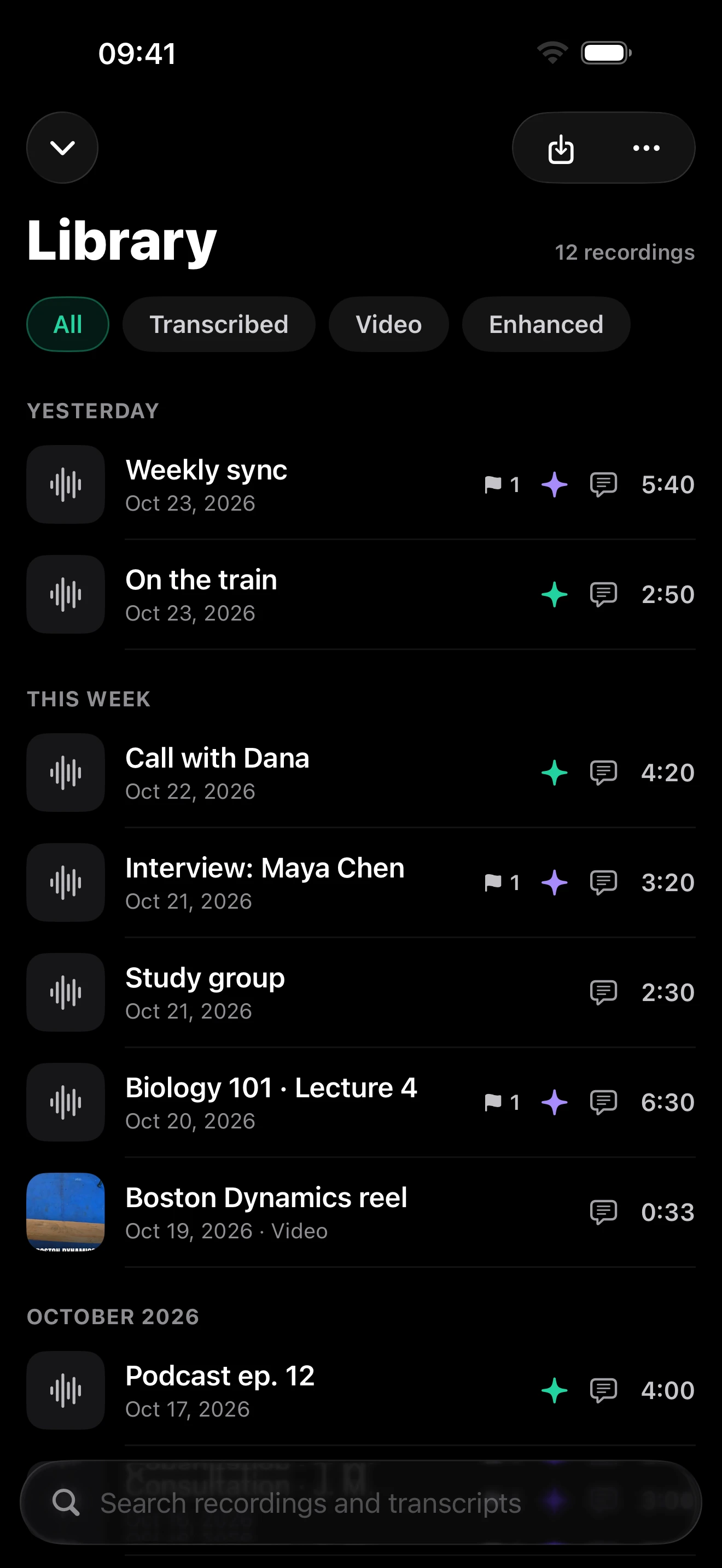
clir Voice is one option when a plain block of text isn't enough, for example for interviews, meetings or podcast recordings with several people. Recording, importing and playback are free.
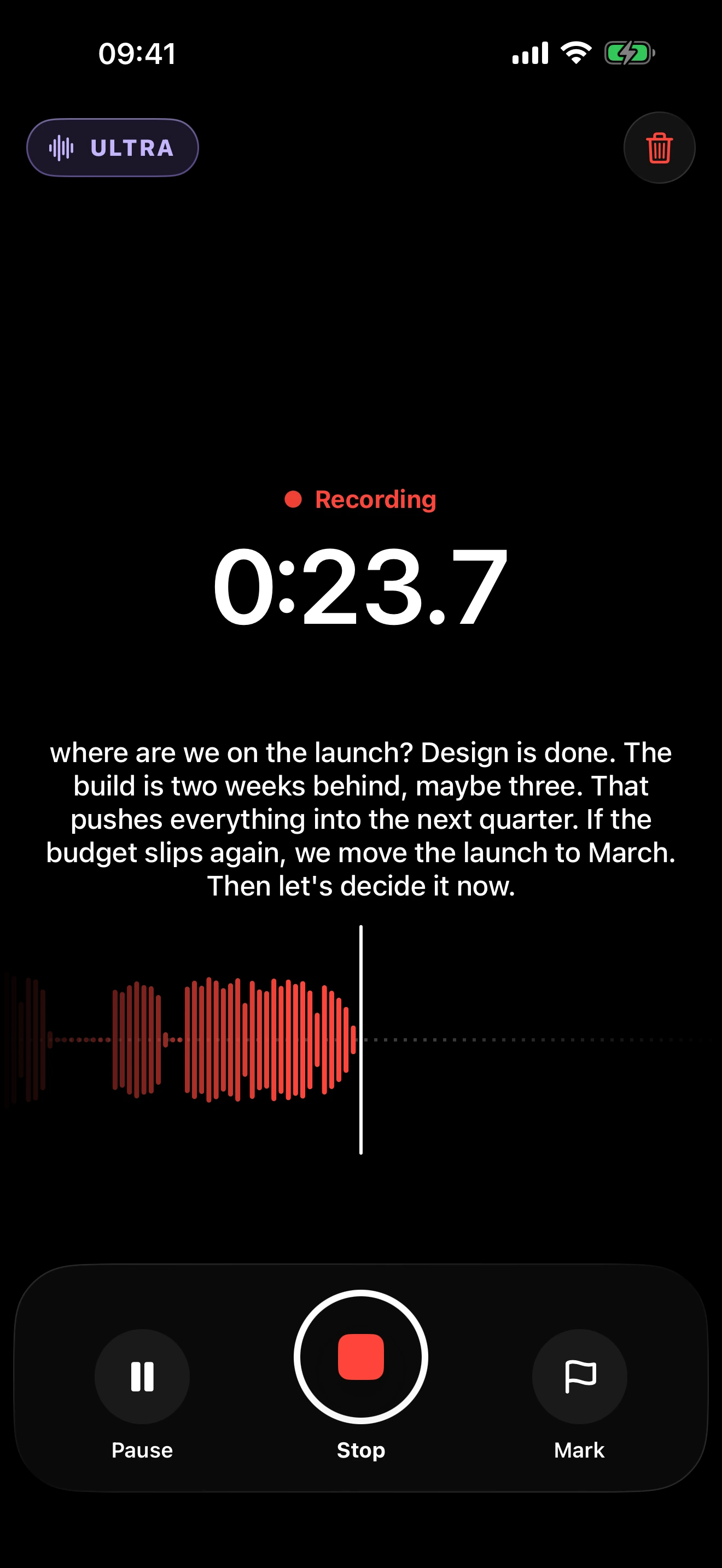
Bring your recording in: clir Voice imports recordings from Voice Memos, Files, messaging apps or the camera roll. You can also record directly in the app, with live captions while you record.
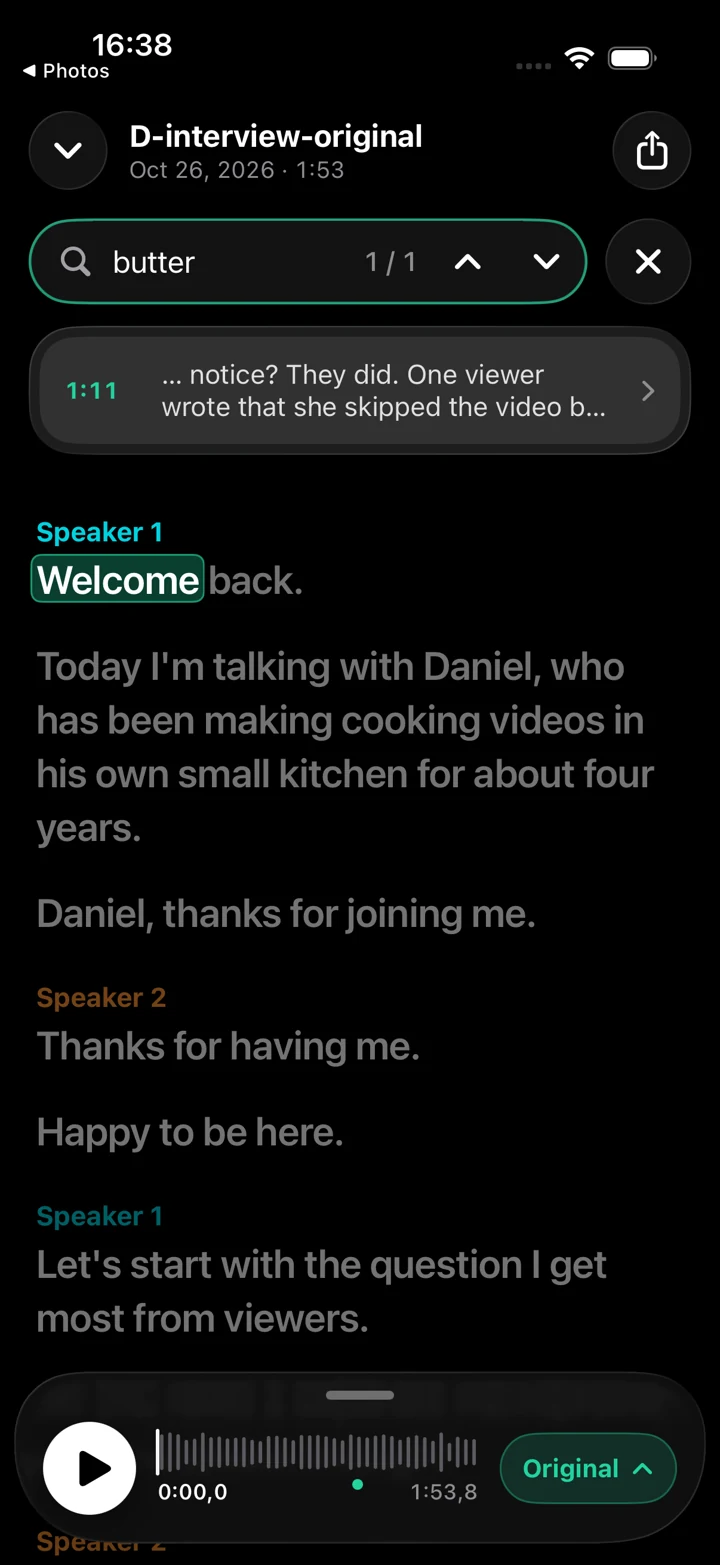
Open the recording to see the full transcript with speaker labels.
Use search across all your recordings. Tap a word in the search results to jump to that second of the audio.
Add markers to passages you want to come back to.
TranscriptionOn your iPhone
“butter” → 1:11
clir Voice 2.3 (5) · Simulator
For transcription work, you'll want to know:
Languages: English, German, French, Spanish, Italian, Dutch, Portuguese, or Automatic. Dutch is supported here, which Voice Memos doesn't list.
On device: transcription runs on the iPhone and the audio is never uploaded. After downloading the speech models once, it works offline, even in flight mode.
Summaries: AI summaries with key points and action items, created on device. These need an Apple Intelligence-compatible iPhone.
Messy audio: with a Plus or Ultra subscription you can also remove background noise from the recording itself (Ultra also removes echo). If you use Ultra's AI voice rebuild, check names, numbers and quotes against the original, which always stays available.
Other options, briefly
Voice Memos on iPad shows transcripts too, on supported models and languages.
Cloud transcription services accept an exported memo (in Voice Memos, tap More → Share or Save to Files). They upload your audio, so check their privacy terms before using them for sensitive recordings.
Get better transcripts next time
Put the iPhone close to the speaker and on a stable surface, not in a pocket.
Pick a quiet, furnished room over a bare one.
For interviews, give each person their own microphone or phone.
Say names and unusual terms clearly once, so you can check the spelling against the audio.
Follow the setup in how to record an interview on iPhone before important conversations.
FAQ
Can iPhone transcribe voice memos automatically?
Yes. On iPhone 12 or later with a supported language, Voice Memos transcribes speech automatically, live while recording and for saved recordings. Tap the recording, tap More, then View Transcript.
Why don't I see a transcript in Voice Memos?
Your iPhone may be older than iPhone 12, the speech may be in an unsupported language, or the feature may not be available in your region. Recordings without clear speech also may not get a transcript.
How do I copy a voice memo transcript?
Tap the recording, tap More, then Copy Transcript to copy everything. To copy part of it, choose View Transcript, select the text and tap Copy.
Can I transcribe old voice memos?
Yes. Apple says Voice Memos transcribes recordings made in earlier versions (iOS 17 or earlier) automatically when you open them, if they contain speech.
Does Voice Memos transcription work offline?
Apple doesn't state this for Voice Memos. If you need guaranteed offline transcription, clir Voice transcribes on the iPhone and works in flight mode once its speech models are downloaded.