

clir Voice · iPhone tips
How to Extract Audio from Video on iPhone (Free)
How to extract audio from video on iPhone for free with a Shortcuts Encode Media shortcut, plus Mac options and cleaned audio export with clir Voice.
The free way to extract audio from a video on iPhone is a two-action shortcut in Apple's Shortcuts app: Encode Media with Audio Only turned on, followed by Save File. You build it once, then run it from the share button on any video in Photos or Files, and it saves an audio file (M4A) to the Files app. iMovie on iPhone has no audio-only export, so Shortcuts is the built-in route.
Method 1: Build an "Extract Audio" shortcut (free, built in)
Shortcuts comes preinstalled on iPhone. If you deleted it, download it again from the App Store.
Build the shortcut once
- Open Shortcuts and tap + to create a new shortcut.
- Tap Add Action, search for Encode Media and add it.
- Tap the media placeholder in the action and choose Shortcut Input. This lets the shortcut receive the video you share to it.
- Expand the Encode Media action (tap the arrow) and turn on Audio Only. If a Format option appears, choose M4A.
- Search for Save File and add it below. Turn on Ask Where to Save, so you can pick a folder each time.
- Open the shortcut's details and make sure Show in Share Sheet is on, then name the shortcut, for example "Extract Audio".
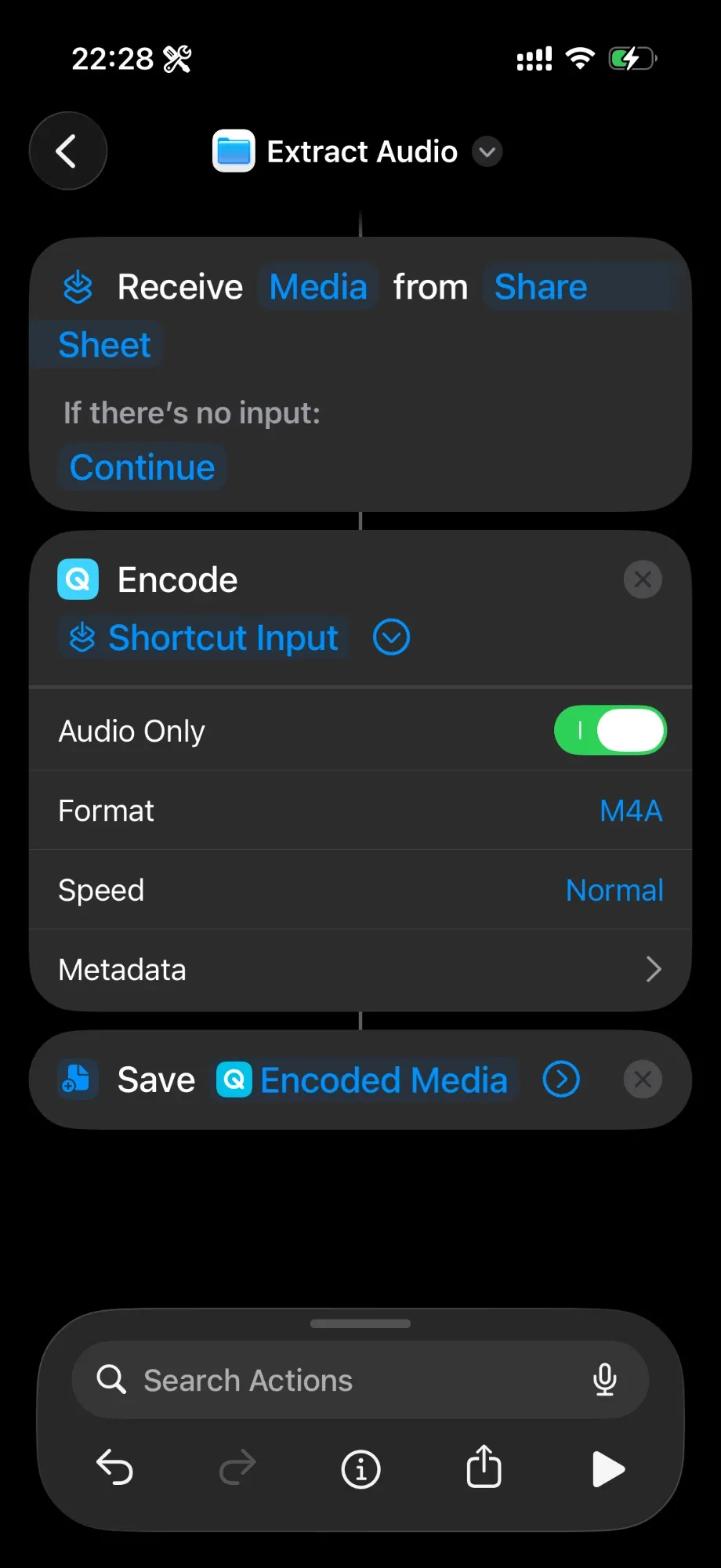
Labels can move slightly between iOS versions, but the two actions and the Audio Only switch are what matter.
Run it on a video
- Open the video in Photos (or select it in Files).
- Tap the share button.
- Scroll down and tap Extract Audio (your shortcut's name).
- When asked, pick a folder, such as On My iPhone or iCloud Drive, and tap Open or Done.
- Open Files and go to that folder. The audio file uses the video's name with an .m4a extension.
If the audio file doesn't show up
Most failures come from four small mistakes:
- Ask Where to Save is off, so the file went to a default folder you aren't looking at. Turn it on.
- Audio Only is off, so the shortcut re-encoded the video instead.
- You ran the shortcut from inside the Shortcuts app. Run it from the video's share button, so it has something to work on.
- The video is still in iCloud. Let Photos download the full-resolution clip first, then try again.
Long videos take a moment to encode. Keep Shortcuts open until it finishes.
Method 2: Other free routes
- On a Mac: In Finder, Control-click the video, choose Encode Selected Video Files, and pick Audio Only as the setting. The Mac version of iMovie can also export a project as audio only when you share it to a file.
- GarageBand on iPhone: GarageBand imports audio files (AIFF, WAV, AAC, MP3, Apple Loops), not videos. Extract the audio with the shortcut above first, then import the M4A into GarageBand if you want to edit it.
- iMovie on iPhone: iMovie's share menu exports video, not audio alone. You can detach a clip's audio inside a project for editing, but it doesn't save it as a separate file.
- Third-party converter apps: Many App Store apps convert video to MP3 or M4A. They work, but check what they do with your files and whether they show ads or upload to a server.
If you want to trim or edit the extracted file afterwards, see how to edit audio files on iPhone.
Method 3: Export cleaned audio with clir Voice (one option)
The methods above give you the soundtrack exactly as recorded, including traffic, wind, hum and room echo. If you want the audio cleaned up as well, clir Voice is one option.
clir Voice is an iPhone app that removes background noise from recordings. With an Ultra subscription you can import a video, generate an Ultra version (background noise and reverb removed, voice rebuilt with AI for a studio-microphone sound) and export only the audio. What you get is the enhanced Ultra audio. If you only need the untouched soundtrack, use the free shortcut.
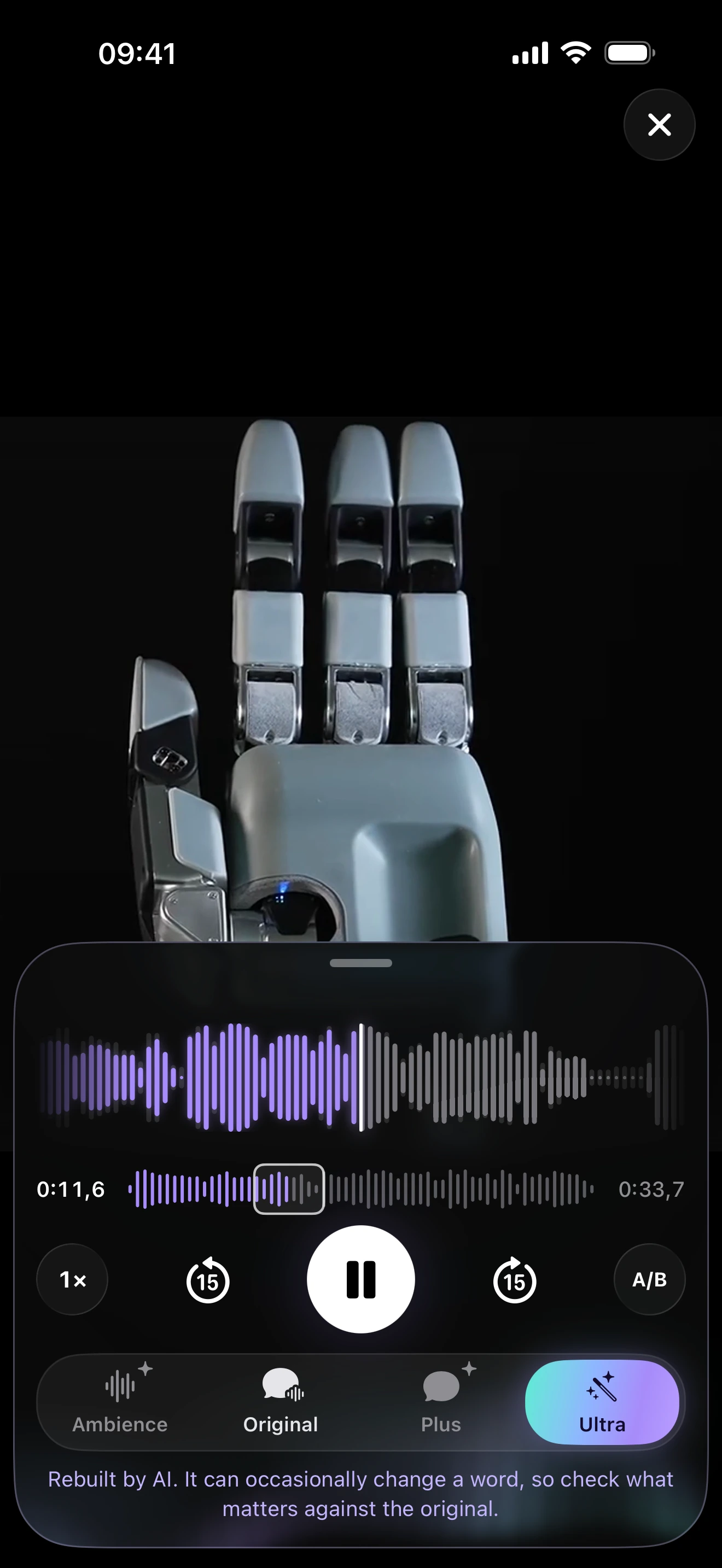
- In clir Voice, tap Import and choose Photo Library or Files, then pick your video.
- Open it, select Ultra and tap Generate. Download the model if the app asks.
- Hold A/B to compare with the Original on a passage that matters.
- Tap the share button, choose Ultra, then Audio Only.
- Save the file to Files or send it to another app.
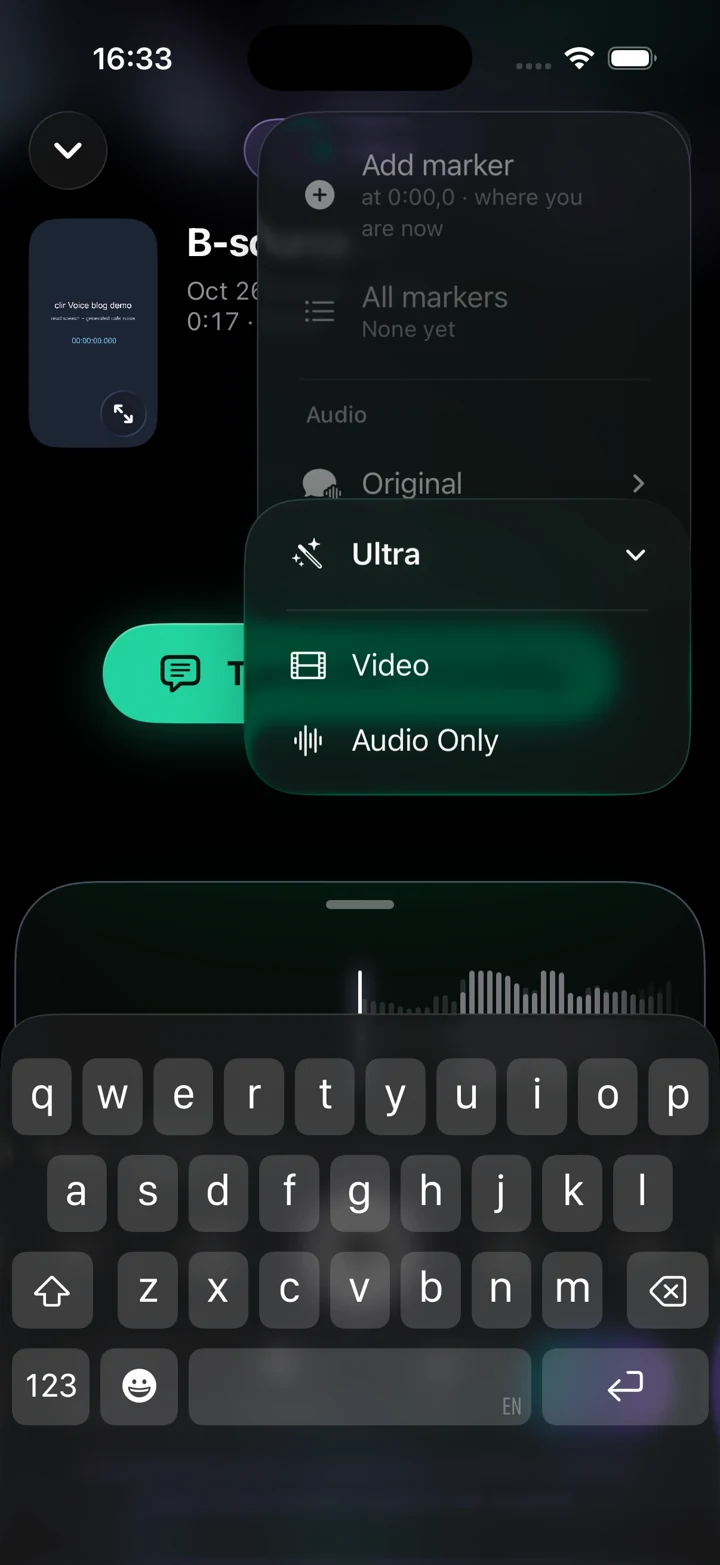
clir Voice 2.3 (5) · Simulator
Before you rely on it:
- Video import and export require Ultra. Plus does not handle video. Recording, importing audio and previewing the enhancements are free.
- AI reconstruction can occasionally change a word. Check names, numbers and quotes against the Original before you publish the audio.
- Ultra needs more working memory than Plus and can be unavailable on devices with insufficient memory, so try the preview on your iPhone first.
- Processing runs on the iPhone. The audio is not uploaded.
- clir Voice can remove fillers like "um" and shorten long pauses, but it has no free trimming, so cut the file in another app if you need a shorter clip.
Which method should you use?
| You want | Use |
|---|---|
| The original soundtrack as an audio file, free | Shortcuts: Encode Media + Audio Only |
| To do it on a computer | Finder's Encode Selected Video Files on Mac |
| Cleaned, publish-ready speech from a noisy or echoey video | clir Voice Ultra → Audio Only |
Tips for better extracted audio
- Start from the original file. A version downloaded from social media has been compressed by the platform, and you can't get that quality back.
- Keep M4A unless the destination needs MP3. M4A (AAC) is widely supported and smaller than WAV.
- Name the file right away in Files. "IMG_4821.m4a" is hard to find a week later.
- If the sound needs more work than noise removal, follow a full workflow such as how to clean up audio in a video.
FAQ
Can I extract audio from a video on iPhone without an app?
Yes. The Shortcuts app is built into iOS, and a shortcut with Encode Media (Audio Only) and Save File turns any video into an audio file. Run it from the share button on the video.
What format is the extracted audio?
The shortcut saves an M4A (AAC) file when you choose that format in the Encode Media action. M4A plays on iPhone, Mac, Windows and most editing apps.
Can iMovie on iPhone export just the audio?
No. iMovie on iPhone shares and exports video. The Mac version of iMovie can export audio only, or you can use the Shortcuts method on iPhone.
Where does the extracted audio go?
It goes to the folder you choose in the Files app when Ask Where to Save is on. If you turned that off, check the folder set in the Save File action, usually in iCloud Drive.
Can I convert a video to MP3 on iPhone?
The built-in Shortcuts method produces M4A, which most apps accept in place of MP3. If a service requires MP3 specifically, a converter app or a computer tool can change the format.